
Customization
Configure basic site settings, header, footer, mega menu, breadcrumb, offcanvas and blog options for your Consulix theme.
Basic Site Settings
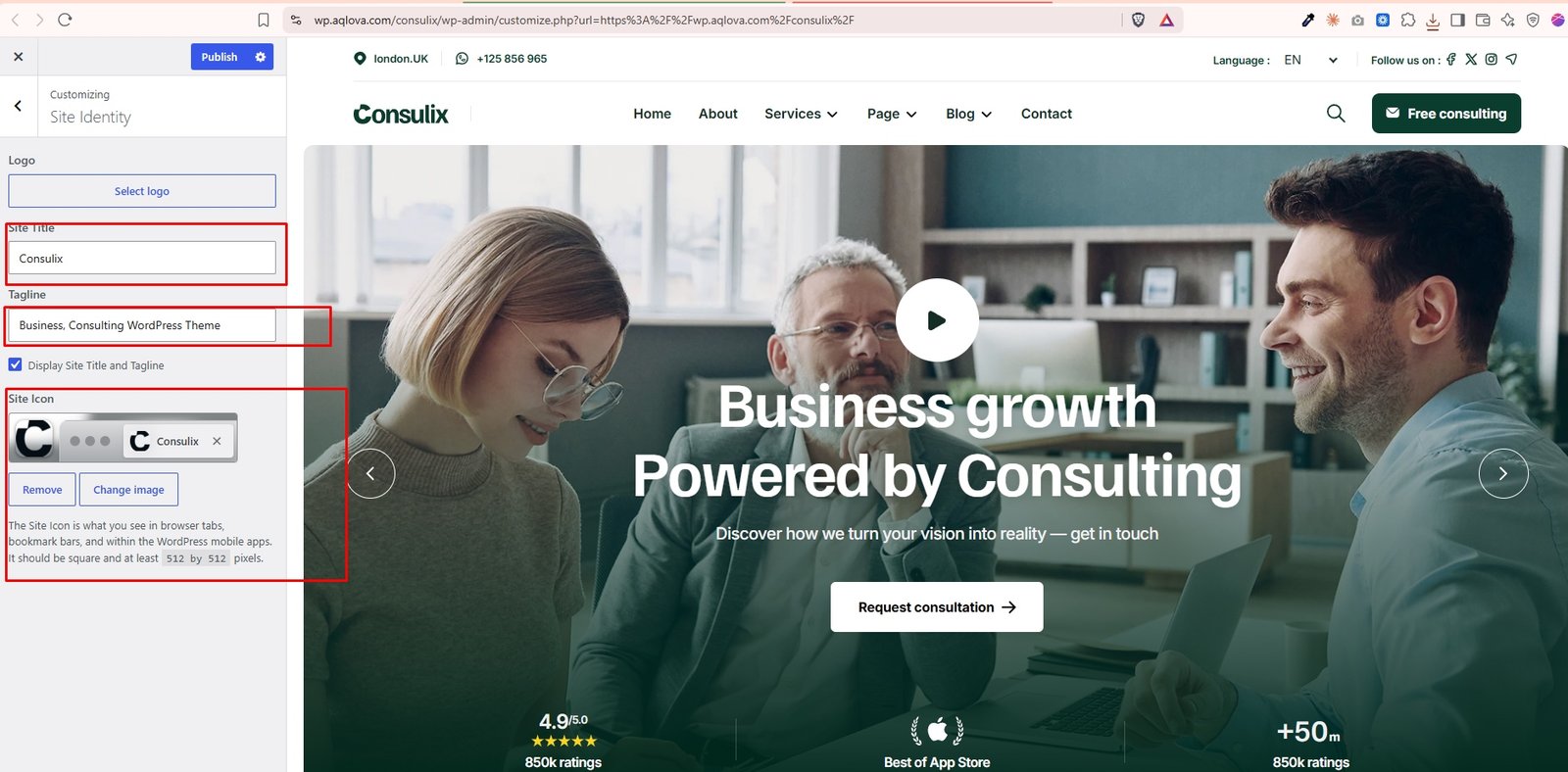
Change Site Title and Favicon
To change your Site Title and Favicon, navigate to Dashboard → Appearance → Customize → Site Identity.
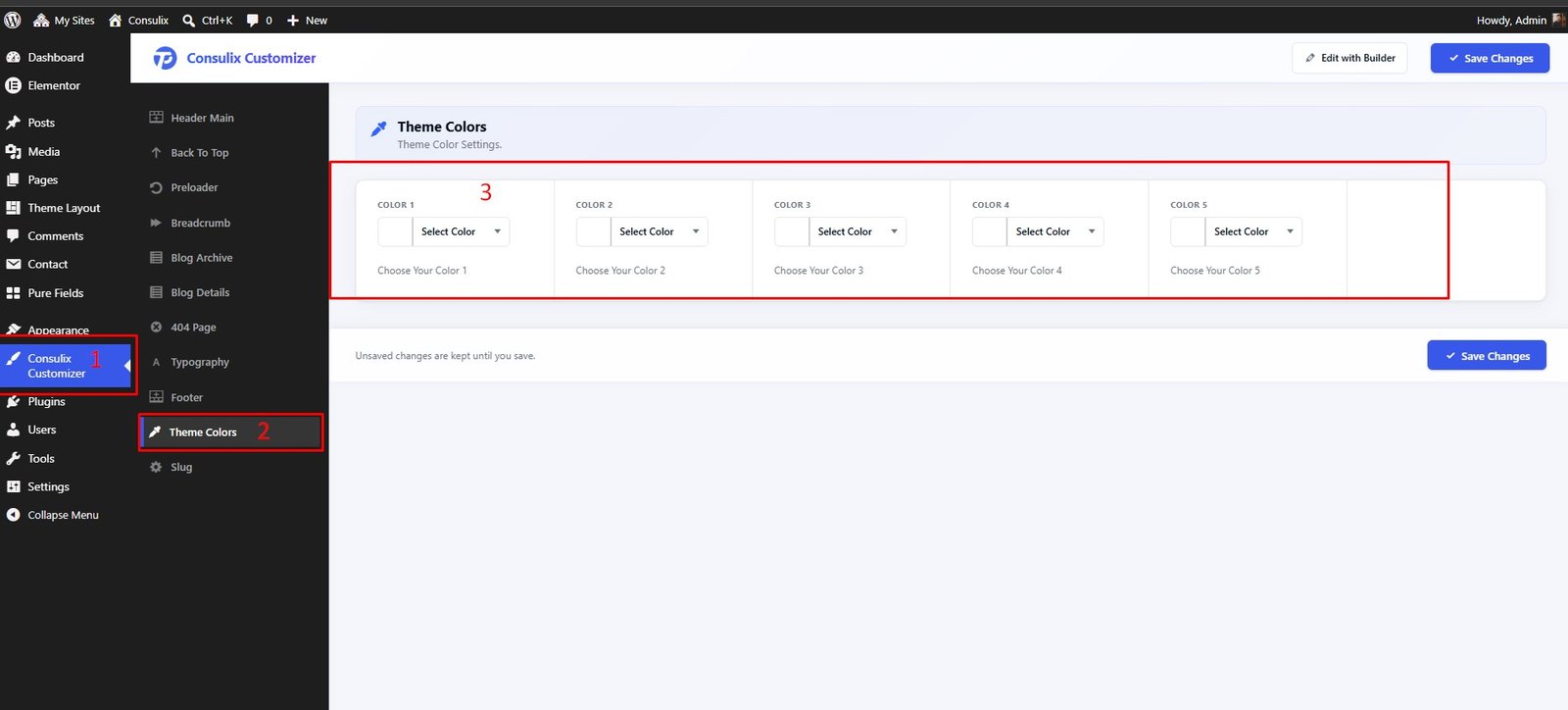
Change Global Colors
To change all global colors, navigate to Consulix Options → Theme Colors.
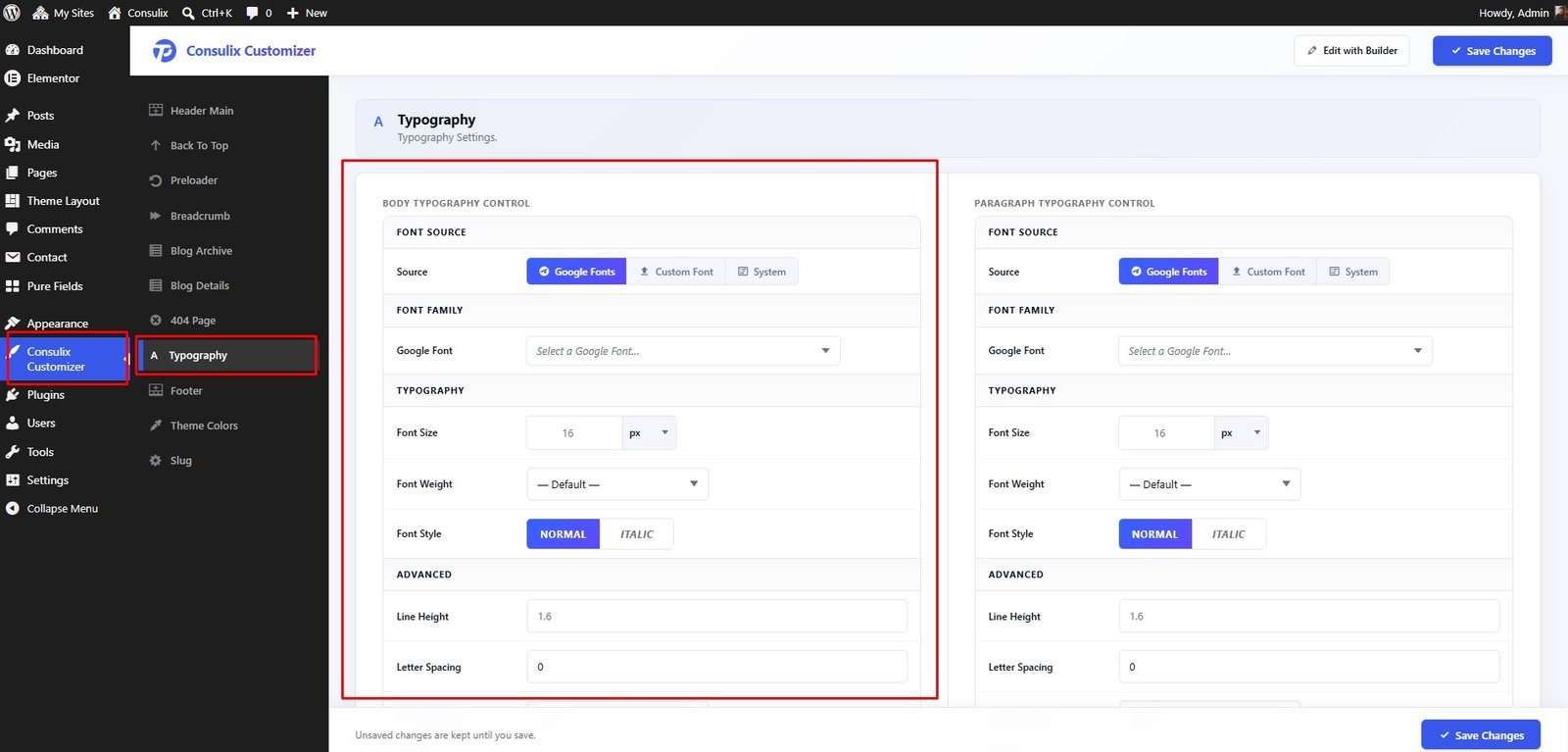
Change Typography
To change the typography of your site, navigate to Consulix Options → Typography.
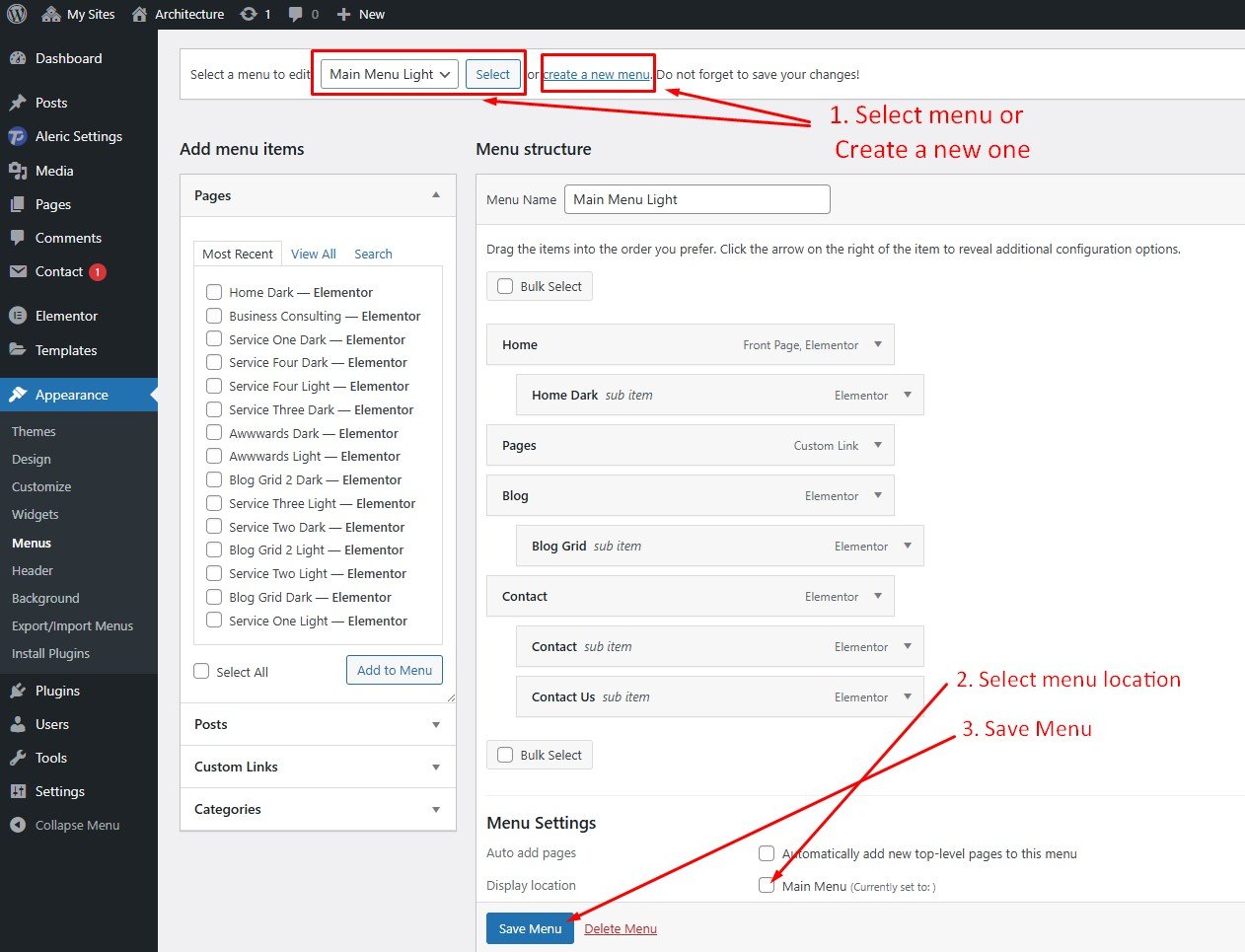
Customize Menu
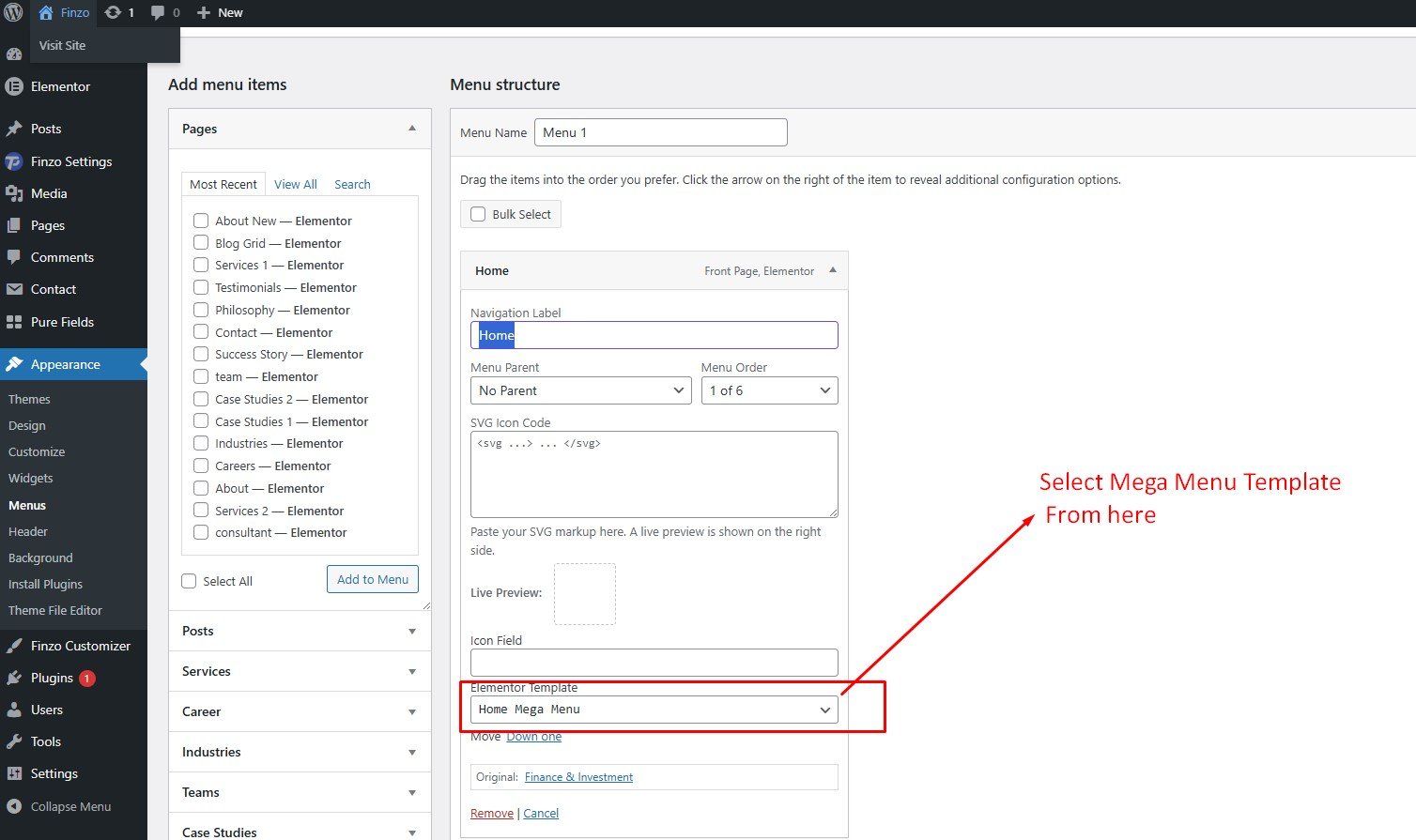
To customize the menu and mega menu, navigate to Dashboard → Appearance → Menus.
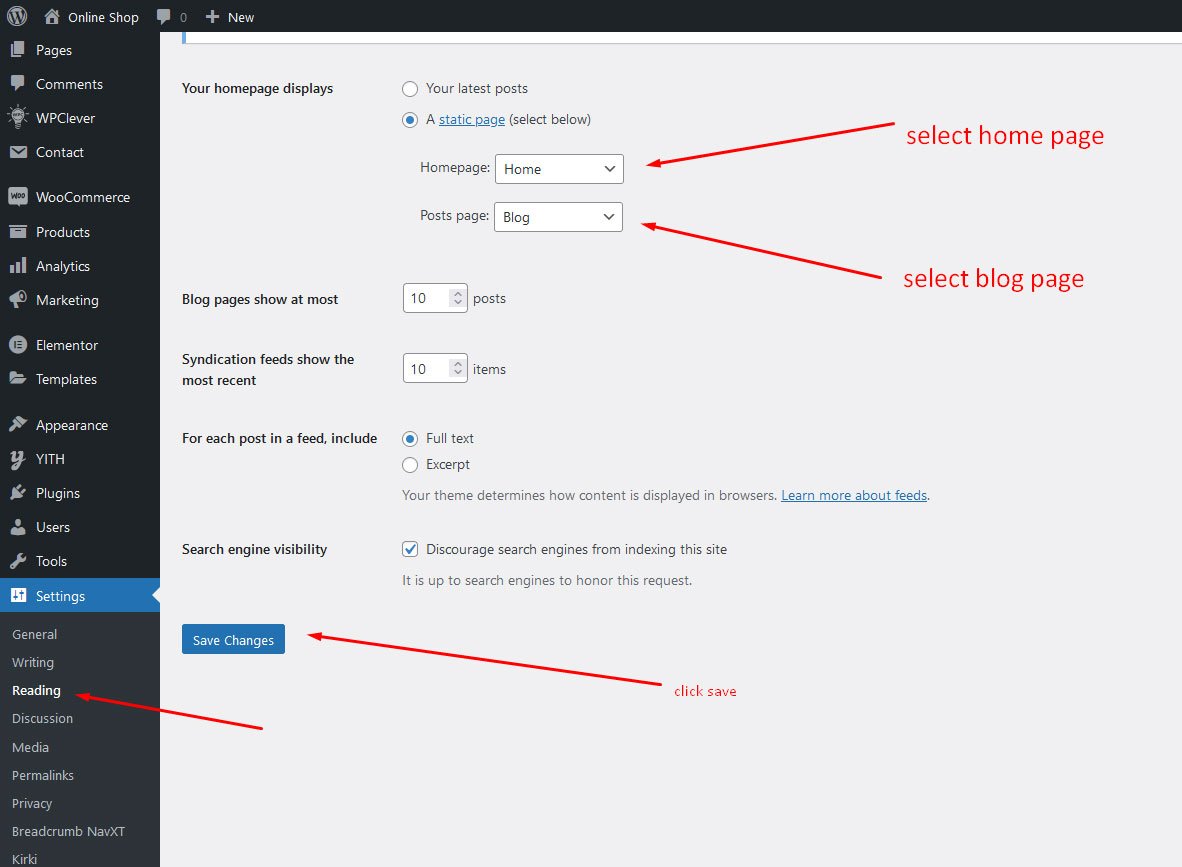
Set Home and Blog Page
To set the home and blog page, navigate to Dashboard → Settings → Reading.
Header
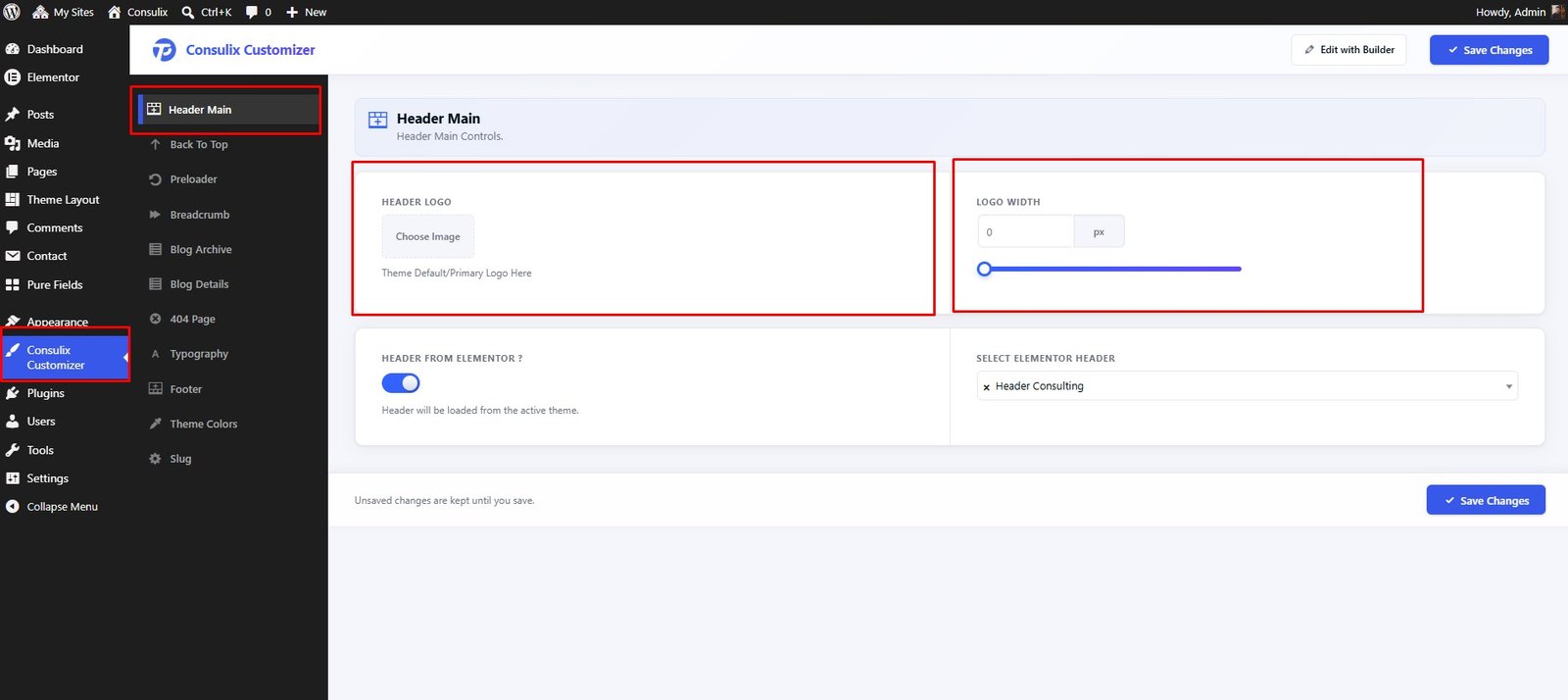
Header Default Setting
To Customize Default header, navigate to Consulix Options → Header Main and Customize logo and width".
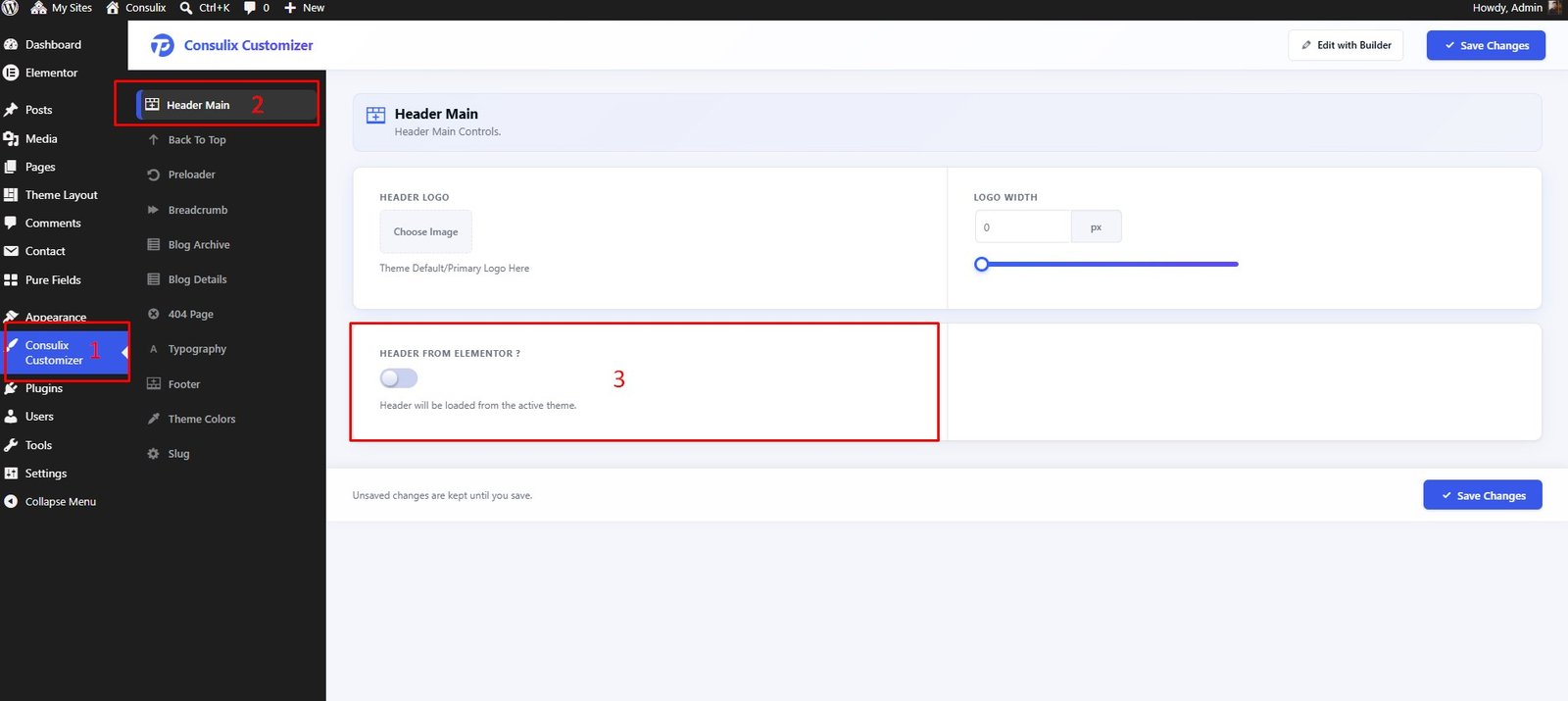
Header Default Layout
To use the default header, navigate to Consulix Options → Header Main then Switch OFF "Header From Elementor? ".
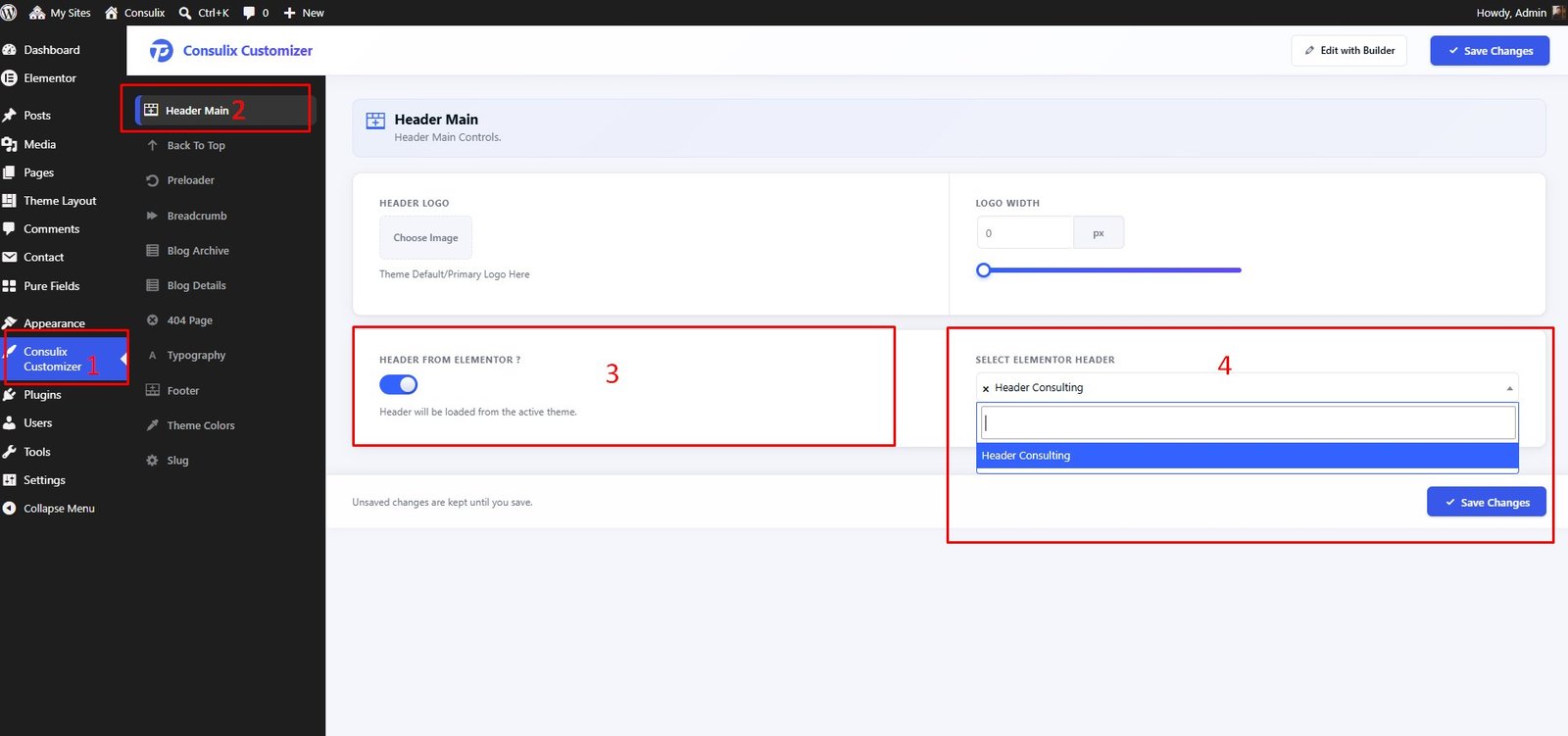
Header Elementor Layout
To use the Elementor header, navigate to Consulix Options → Header Main then Switch ON "Header From Elementor? ". And Select Elementor Header
Header Elementor Create
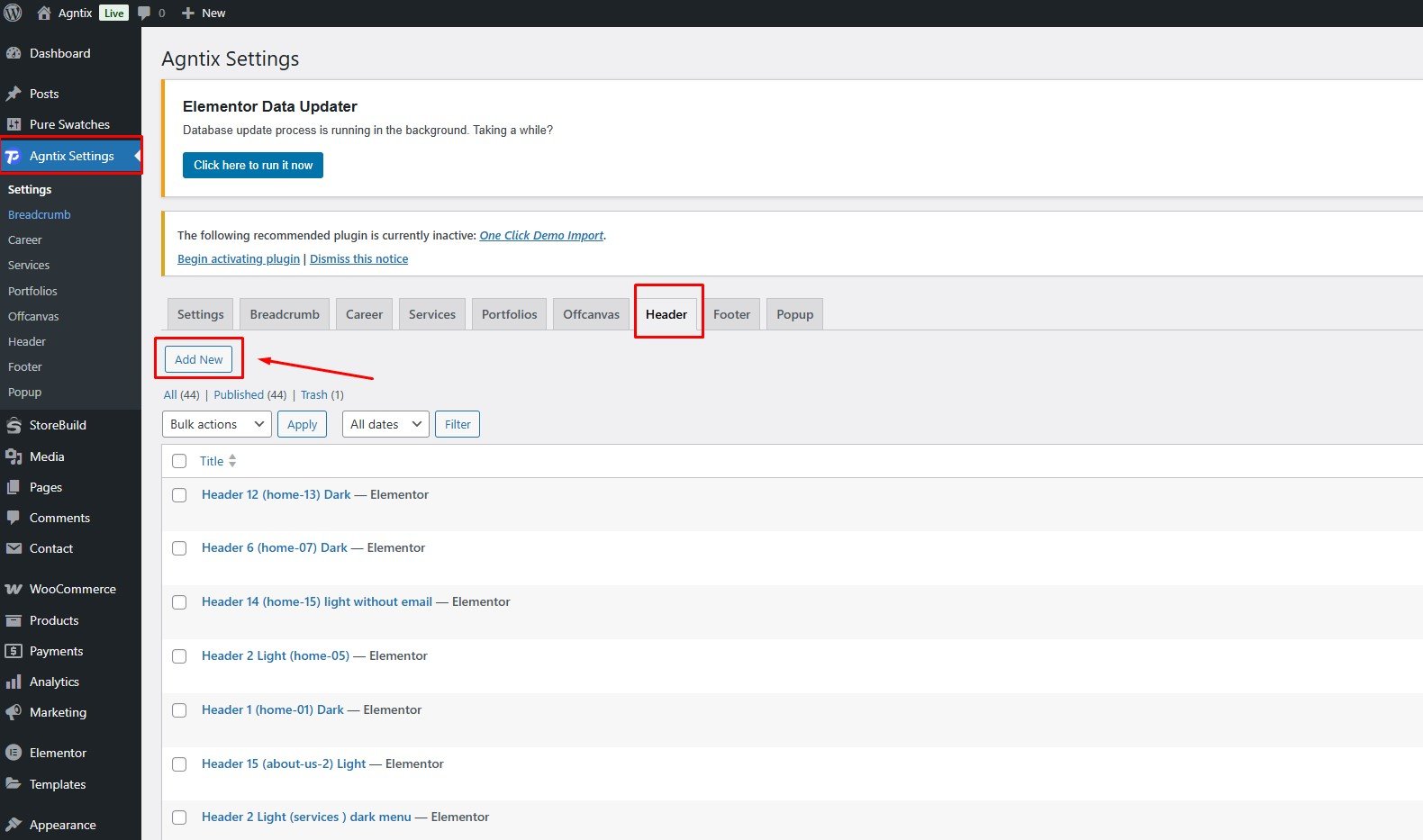
To create an Elementor header, navigate to Dashboard → Theme Layout → Header → Add New.
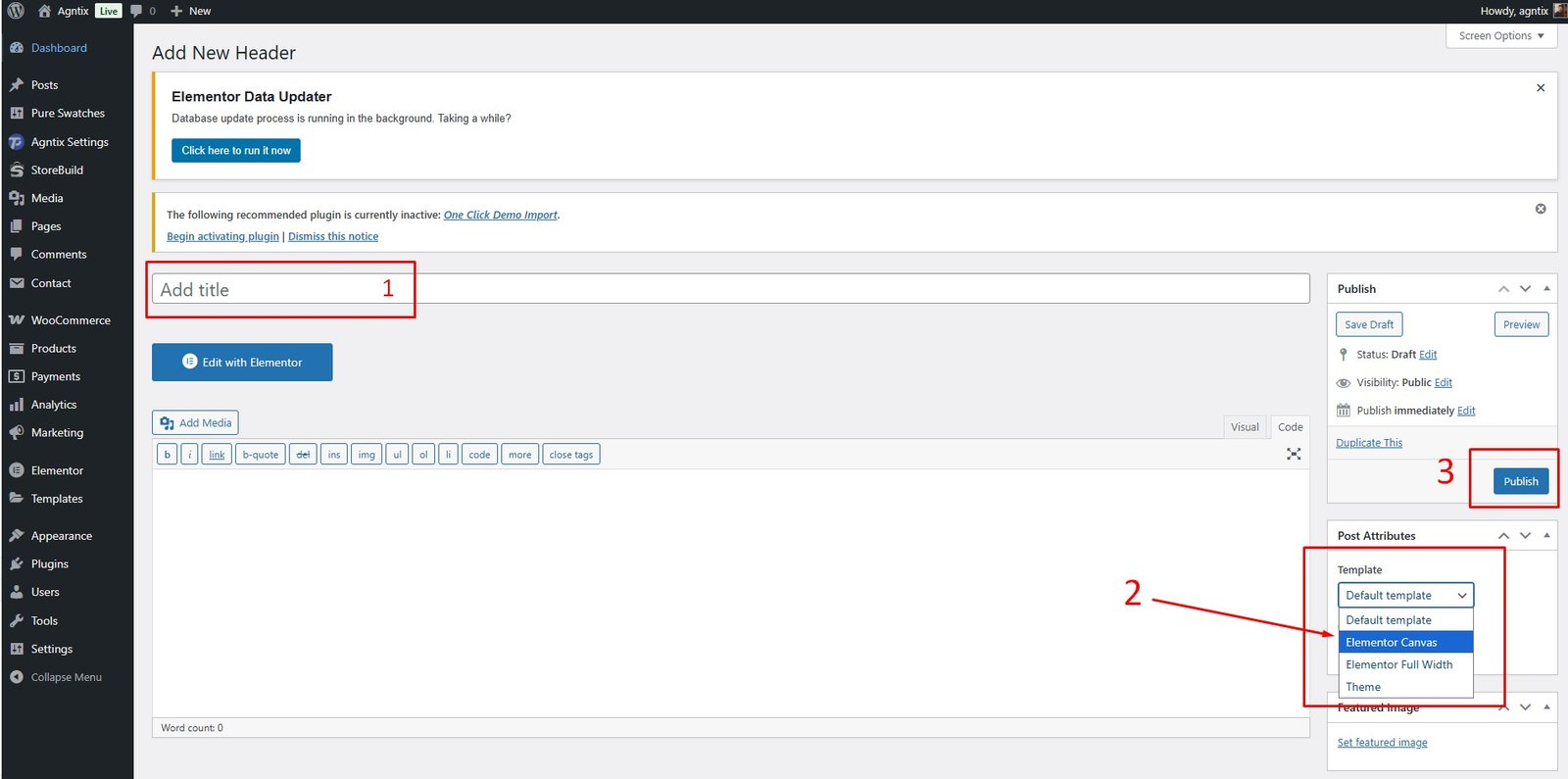
Create a new Header
- Insert a Header Title
- Select Page Template as "Elementor Canvas"
- Click "Publish"
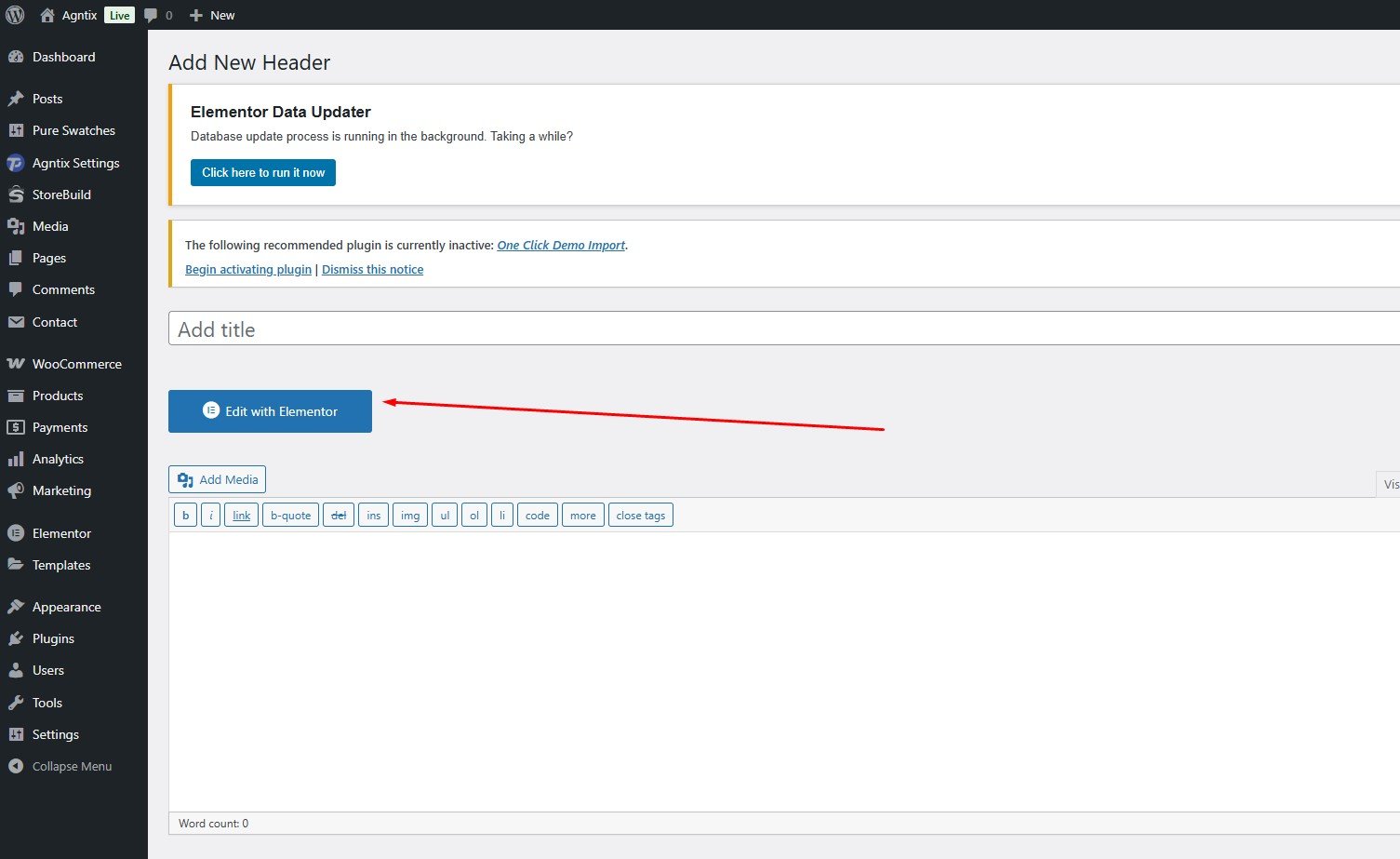
Edit with Elementor
Click "Edit With Elementor" and build the header layout.
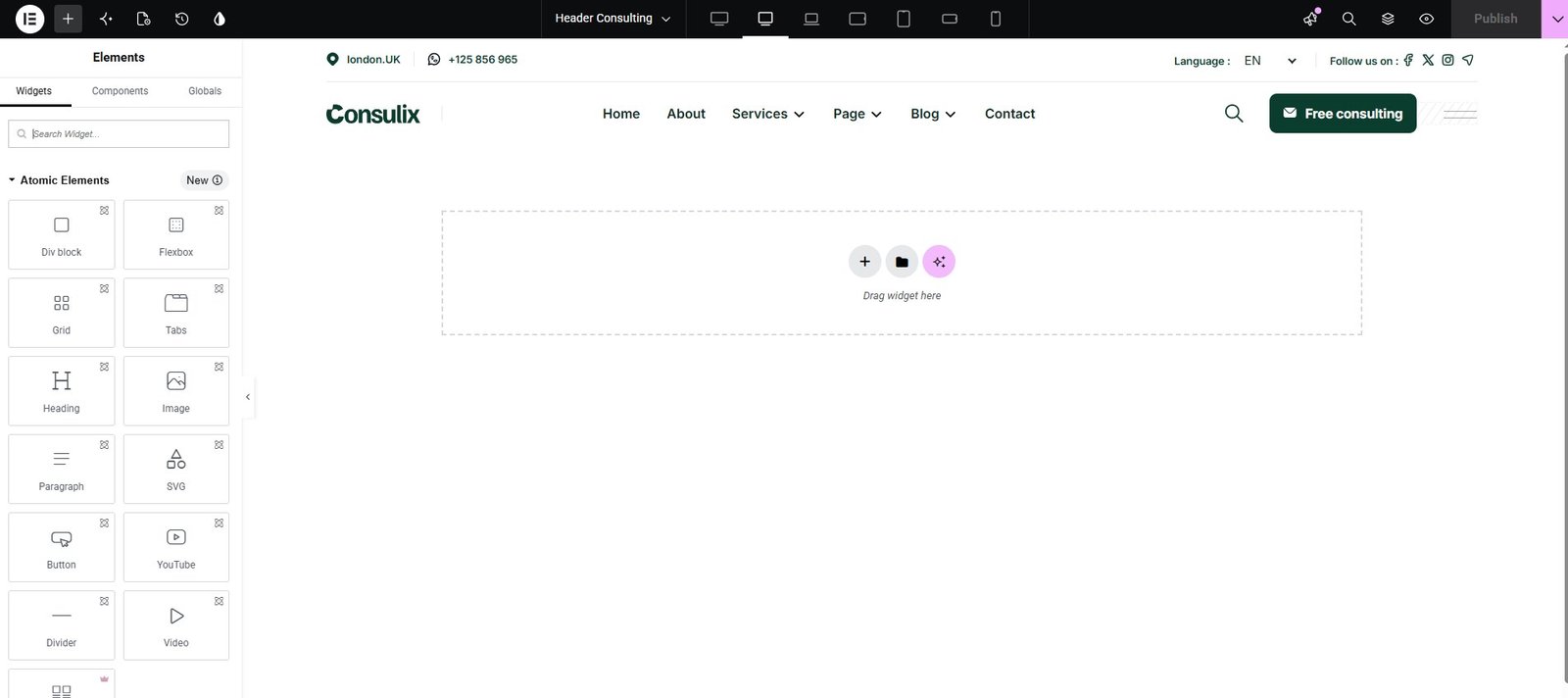
Create Elementor Header — Video Tutorial
Header Style Options
To edit a specific page's header, identify the Elementor header used by that page:
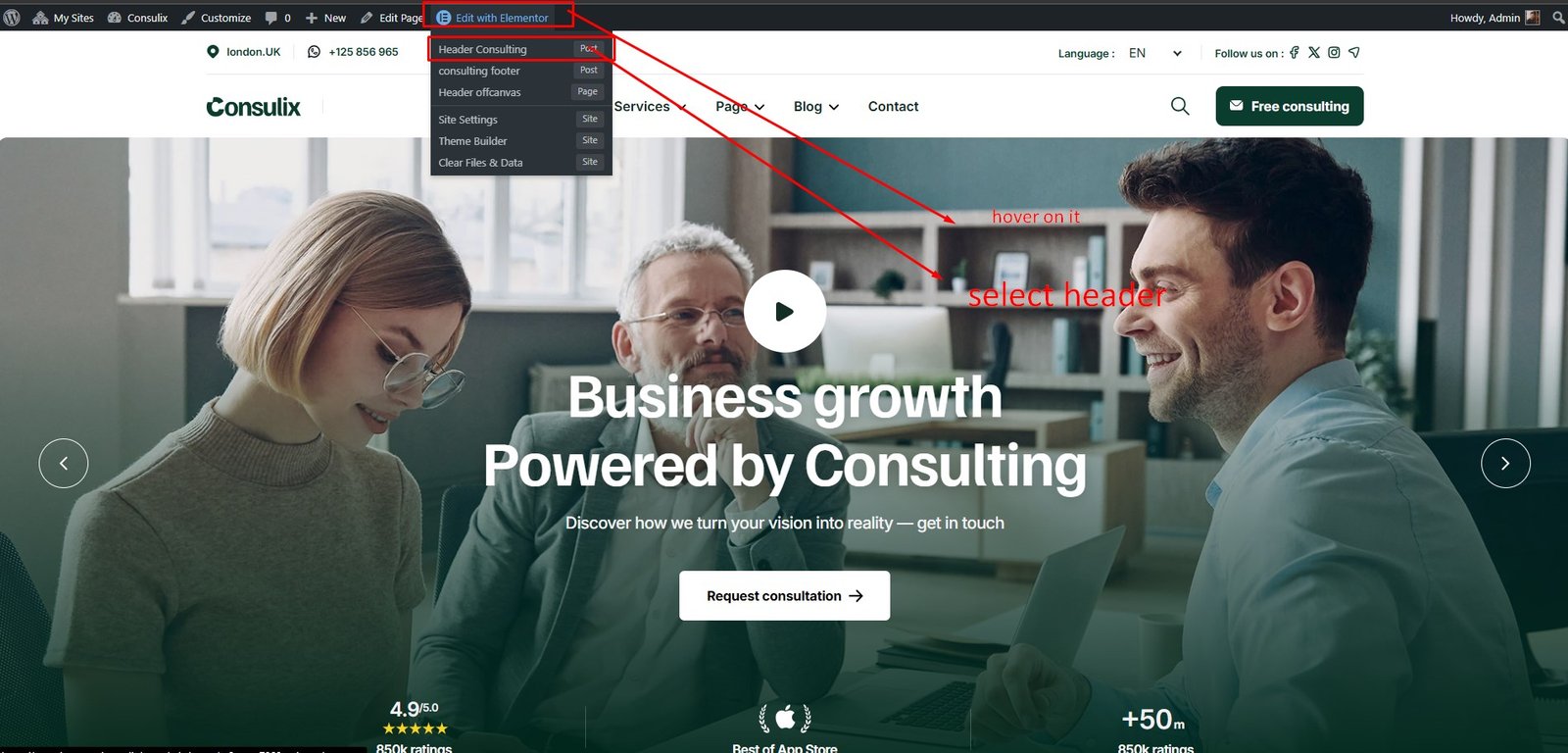
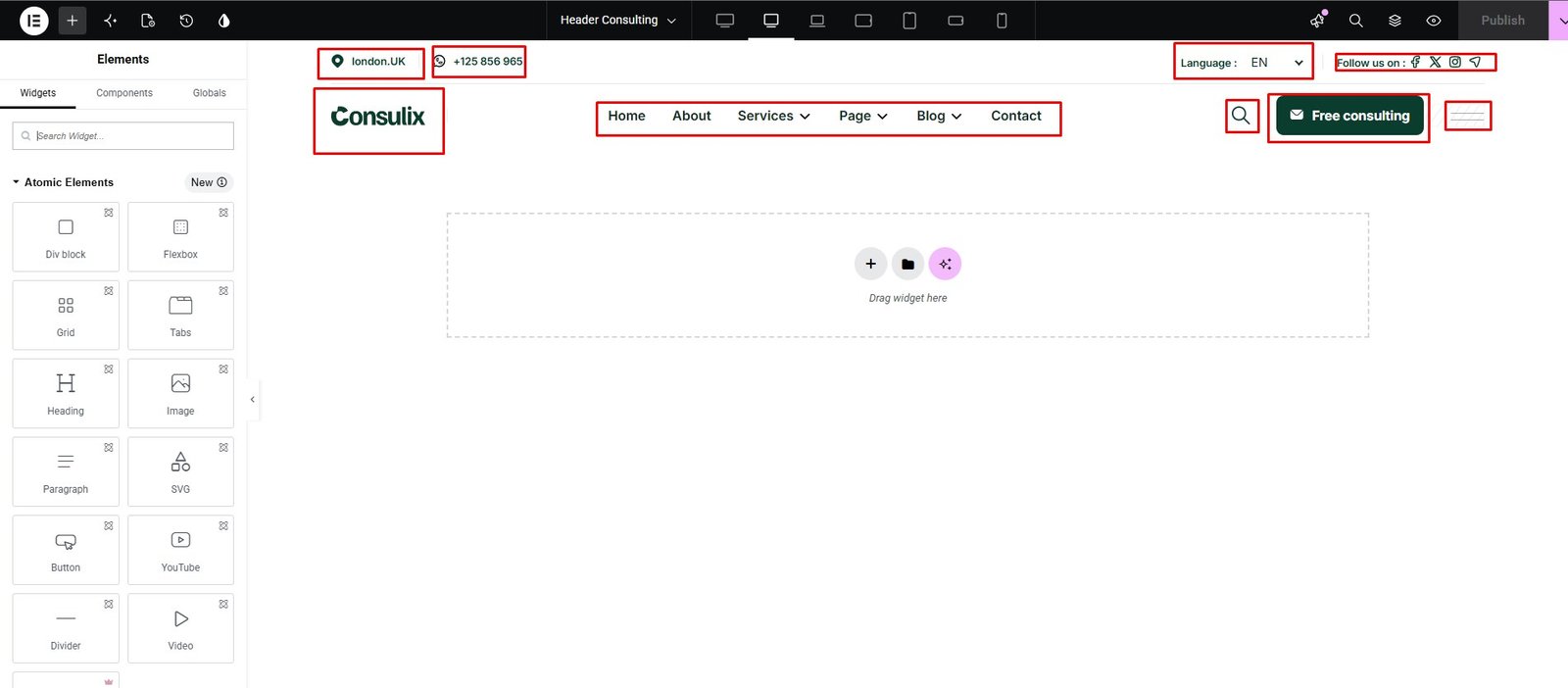
Edit Specific Page Elementor Header — Video Tutorial
Footer
Footer Default Layout
To use the Elementor Footer, navigate to Consulix Options → Footer Then Switch Off "Footer From Elementor? "
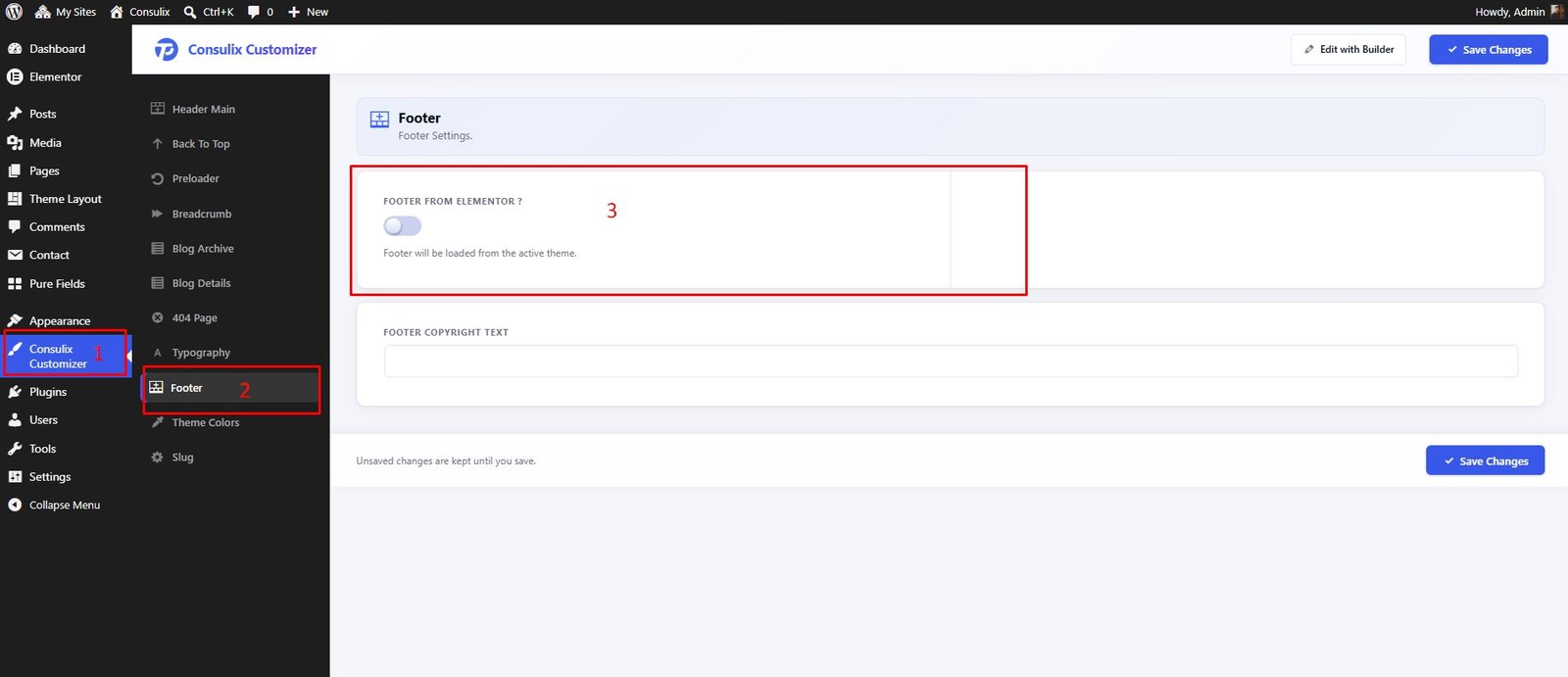
Footer Elementor Layout
To use the Elementor Footer, navigate to Consulix Options → Footer Then Switch On "Footer From Elementor? ". And Select Elementor Footer
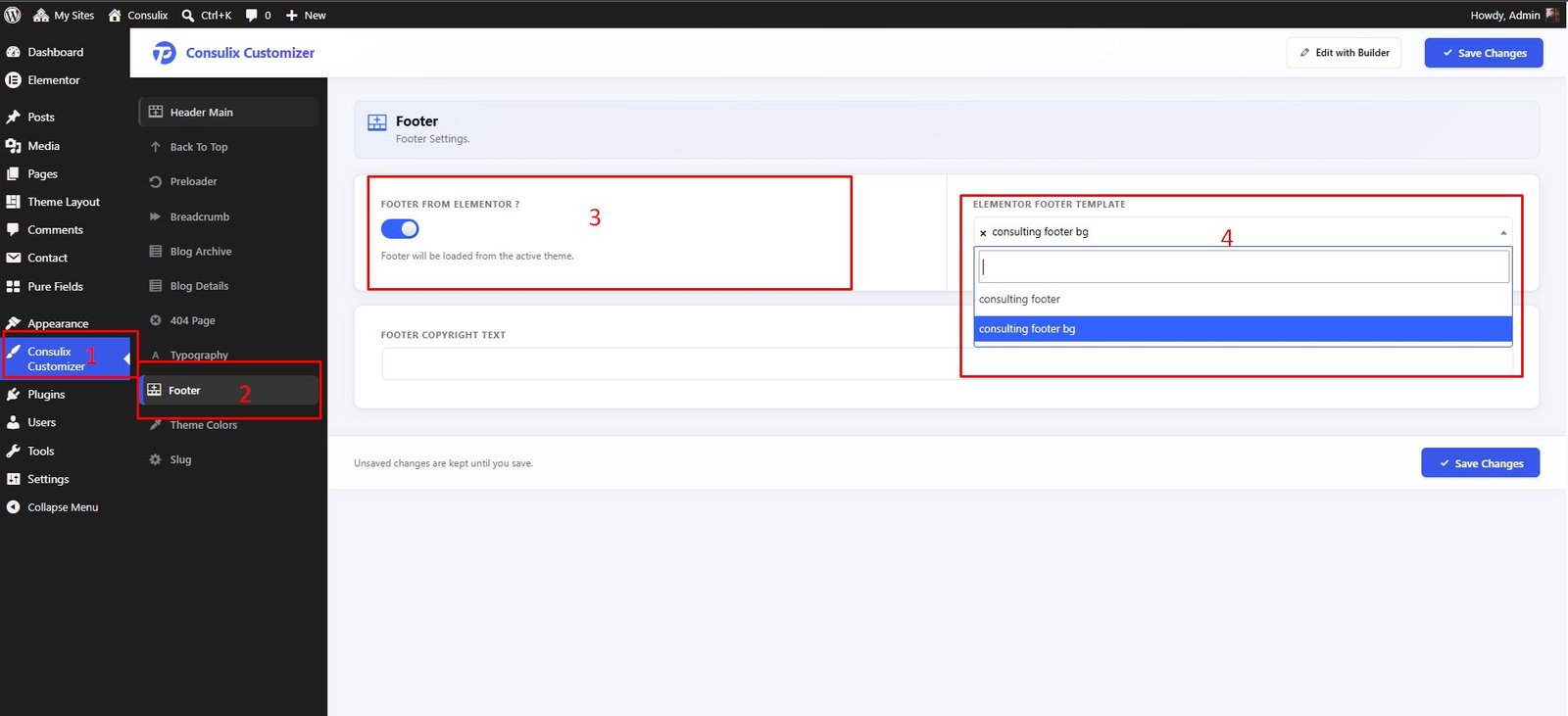
Footer Elementor Create
To create an Elementor footer, navigate to Dashboard → Theme Layout → Footer → Add New.
Create a new Footer post
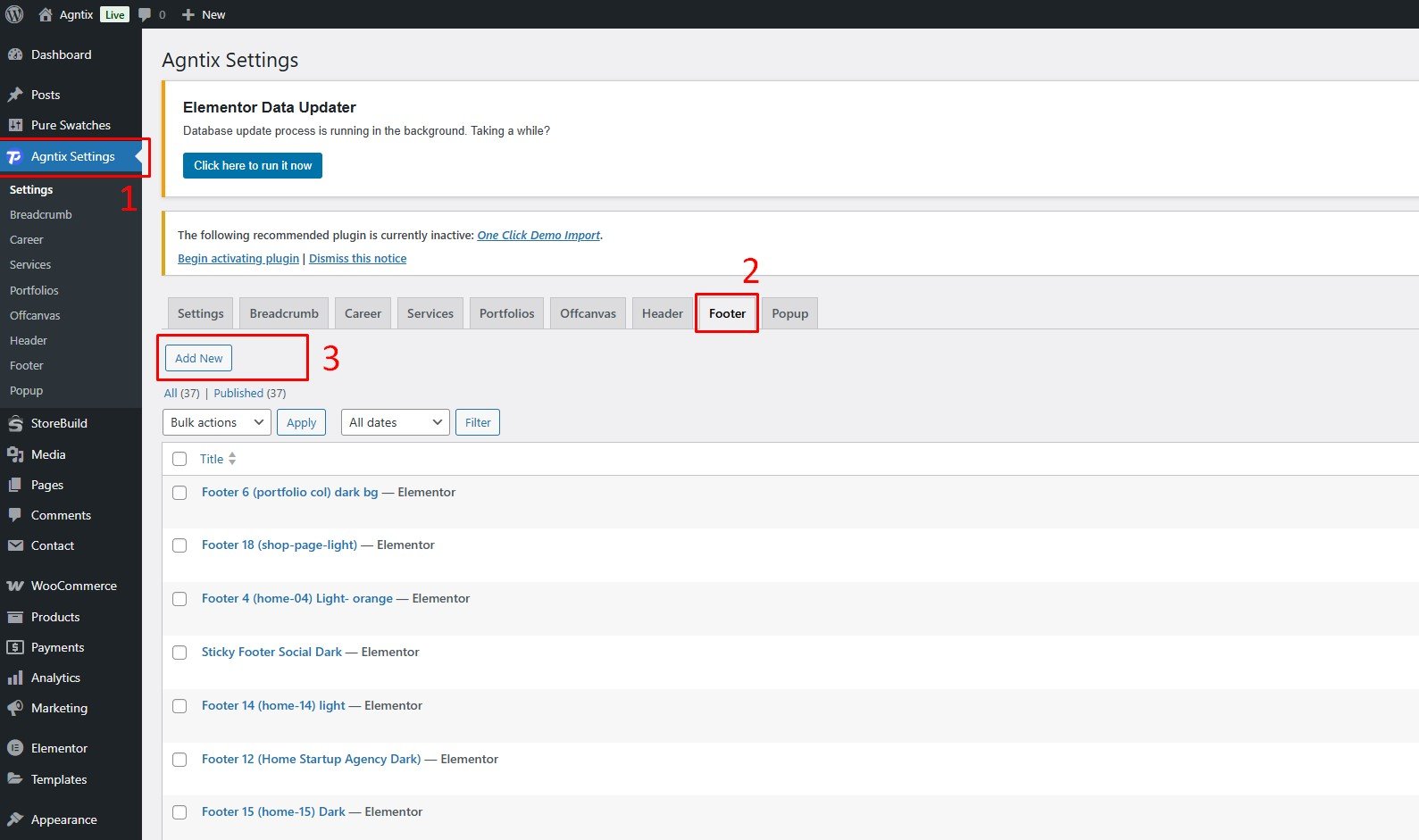
- Insert a Footer Title
- Select Page Template as "Elementor Canvas"
- Click "Publish"
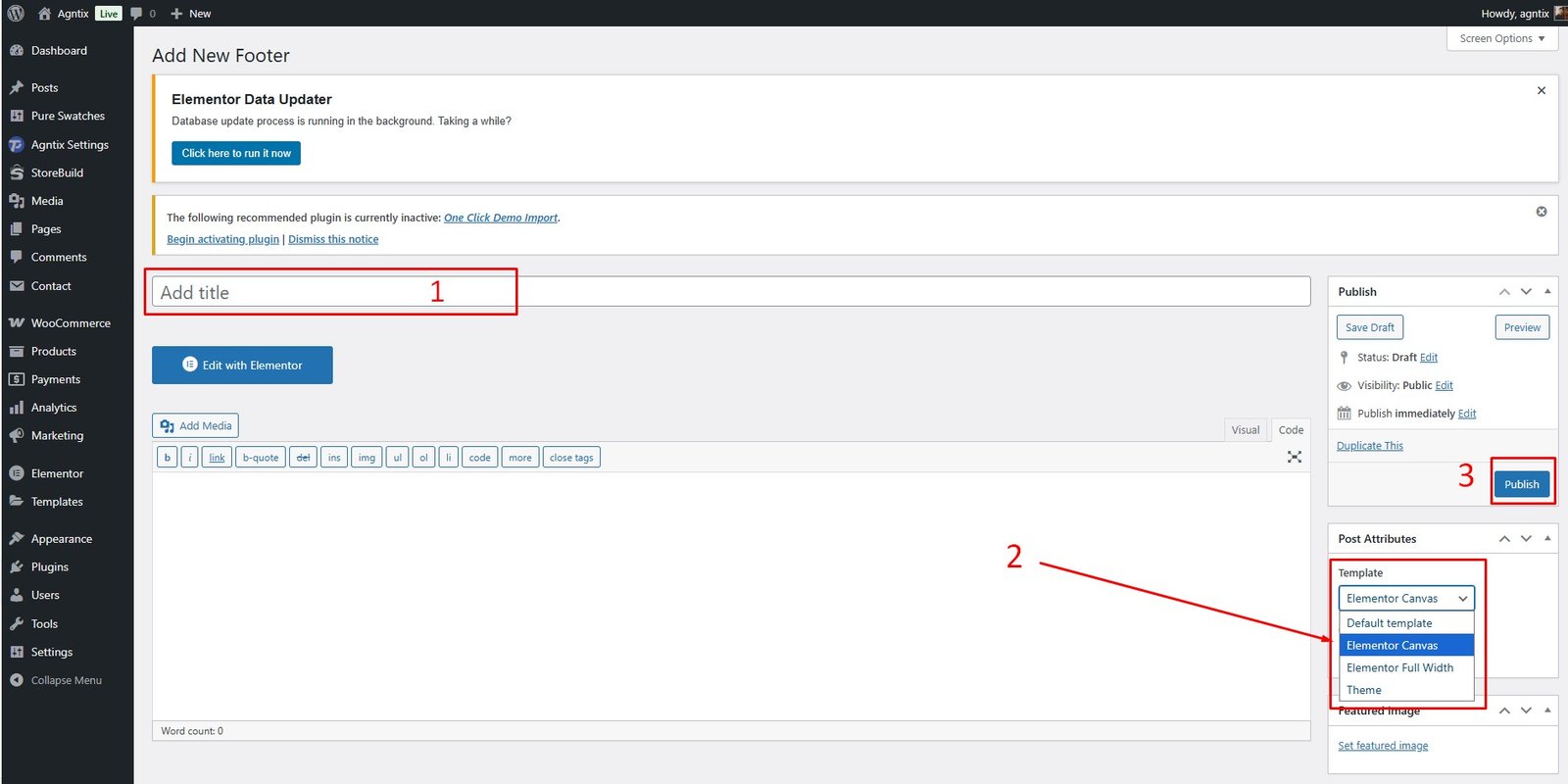
Edit with Elementor
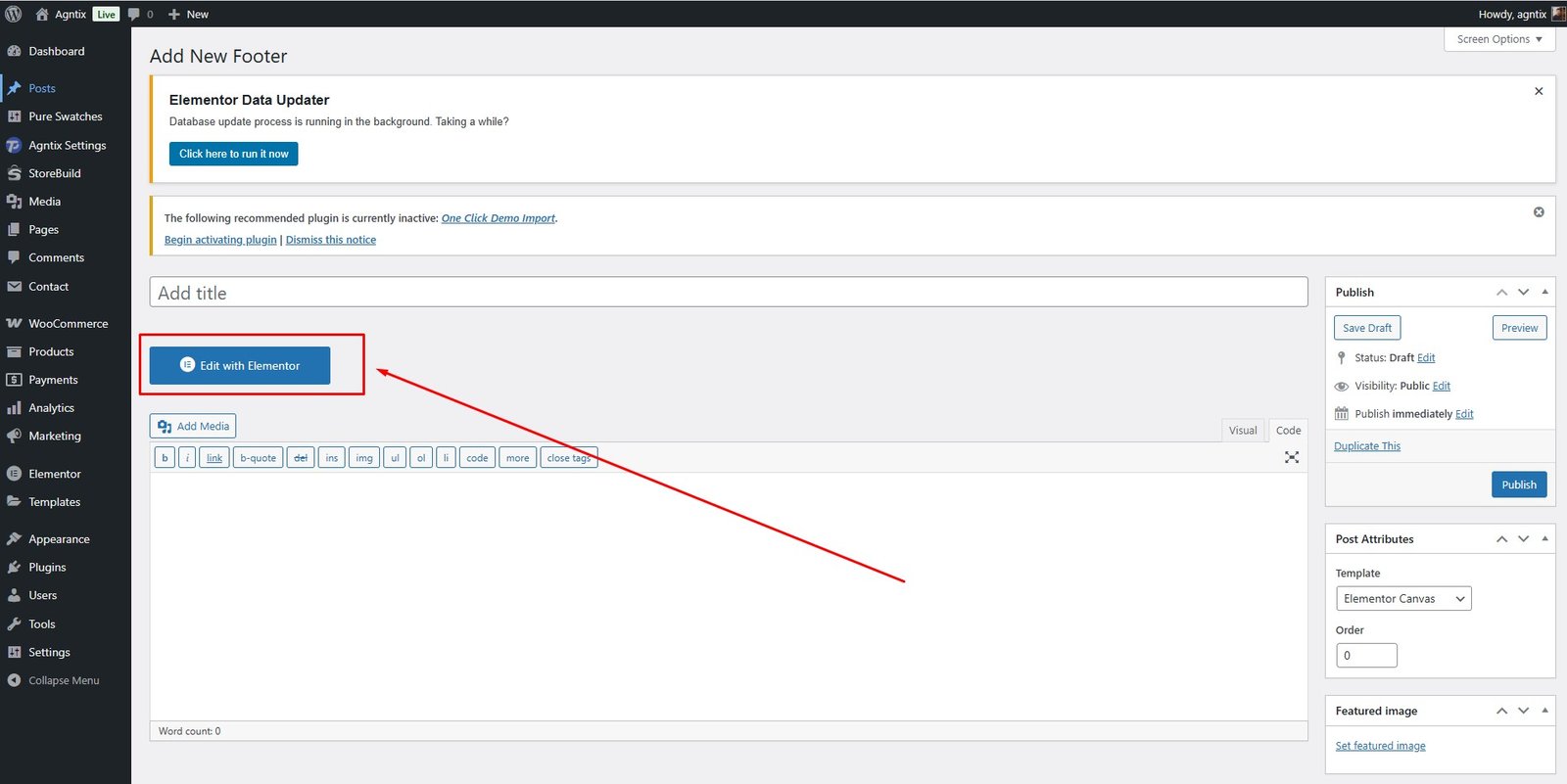
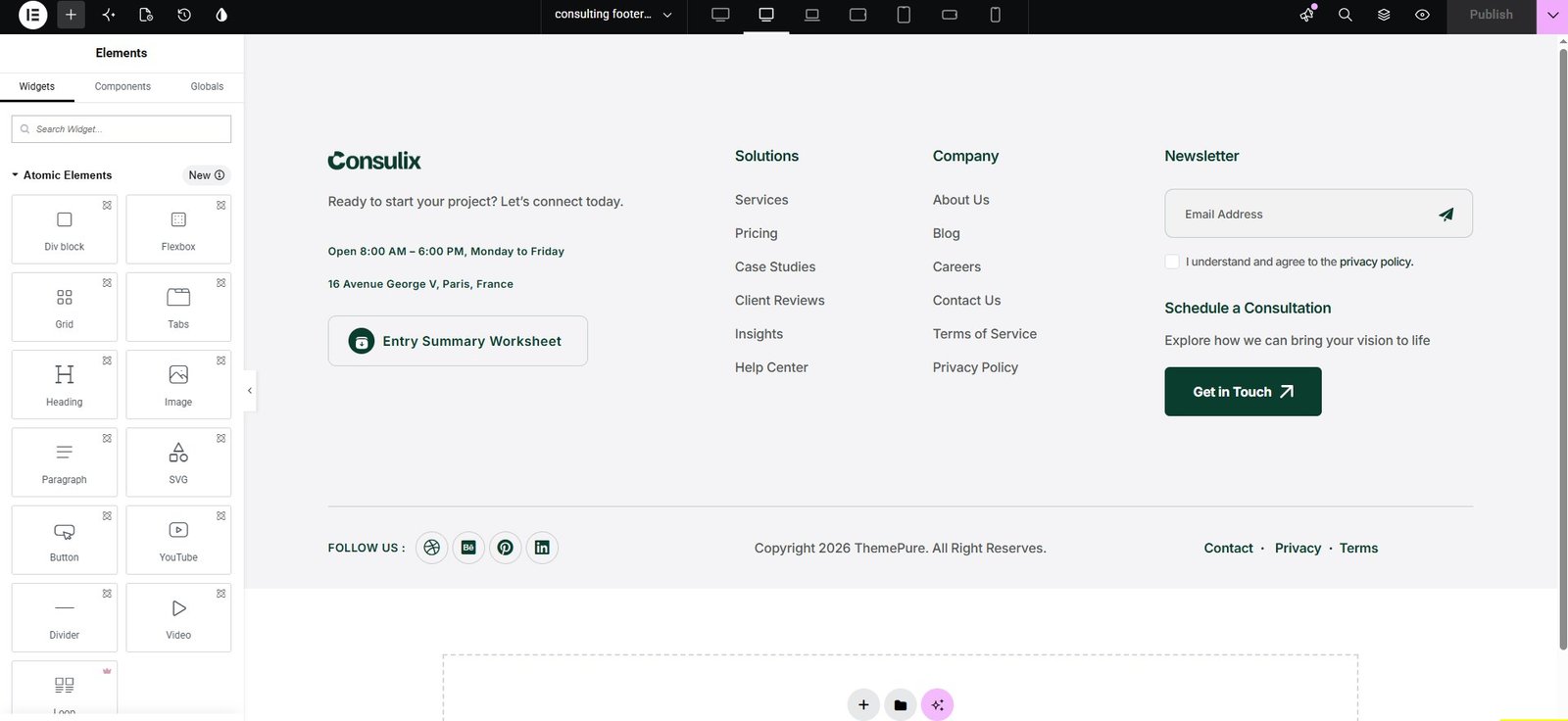
Create Elementor Footer — Video Tutorial
Footer Style Options
To edit a specific page's footer, identify the Elementor Footer used by that page:
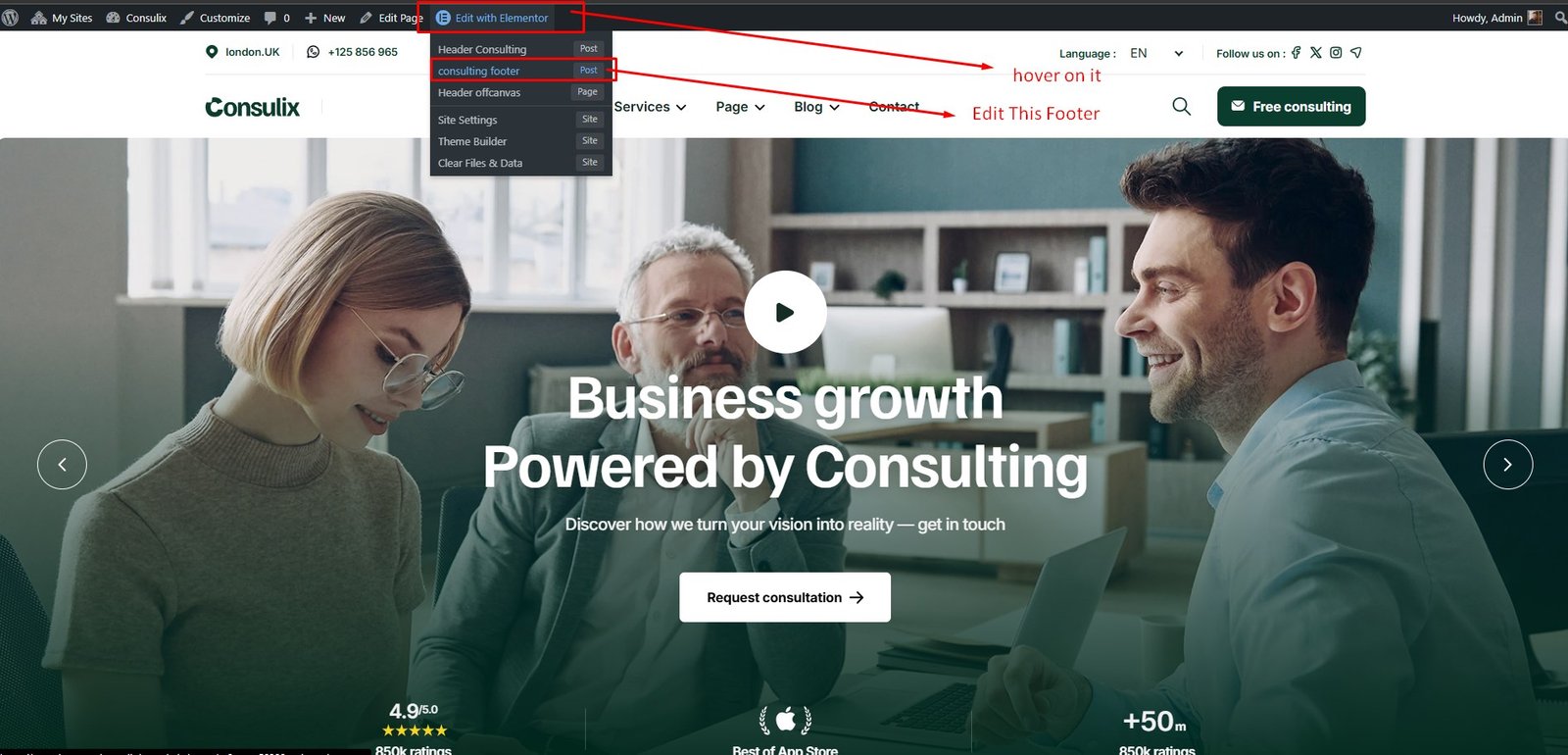
Edit Footer and Select Footer Style — Video Tutorial
Mega Menu
Create Consulix Mega Menu Template
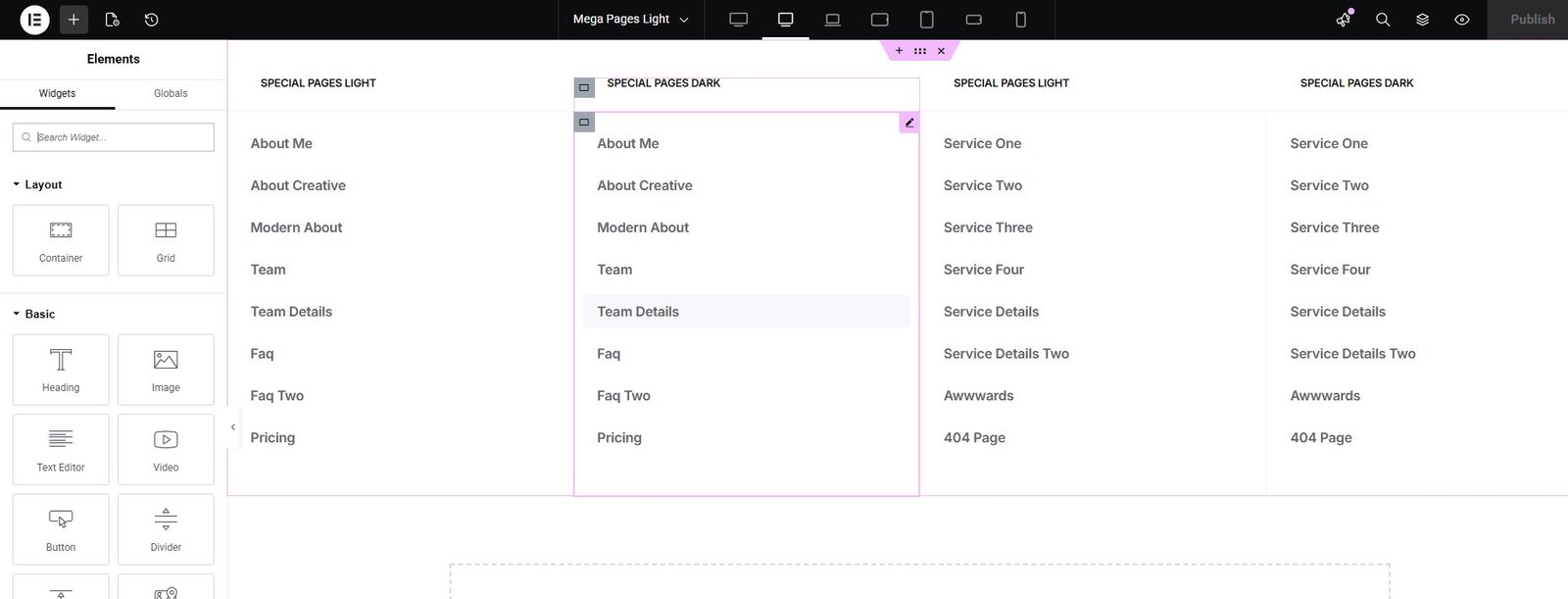
To create a mega menu, navigate to Dashboard → Theme Layout → Mega Menu → Add New.
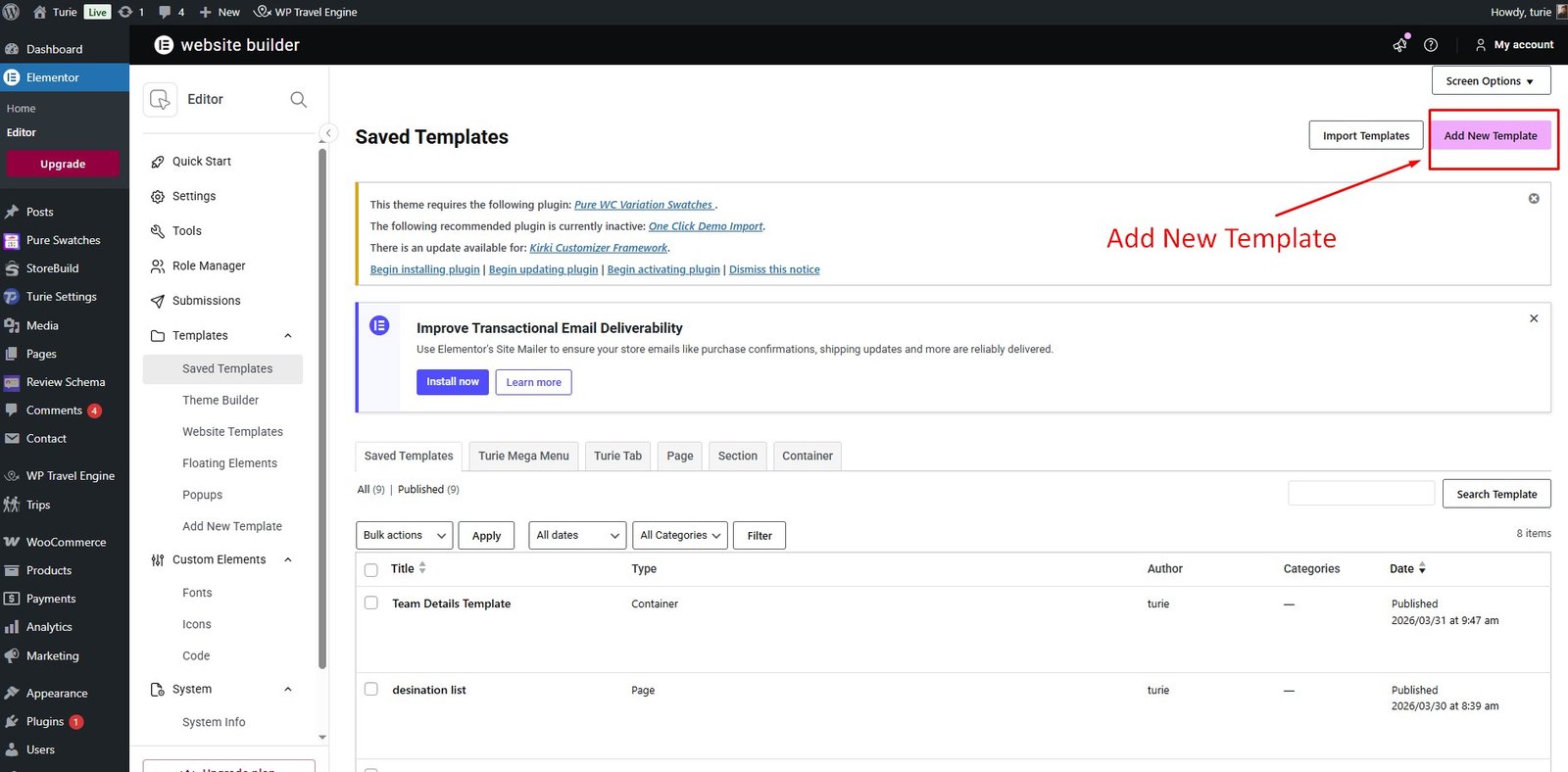
- Open the Mega Menu tab on the Theme Layout screen.
- Name your Mega Menu template.
- Click "Create" — the template is built with Elementor.
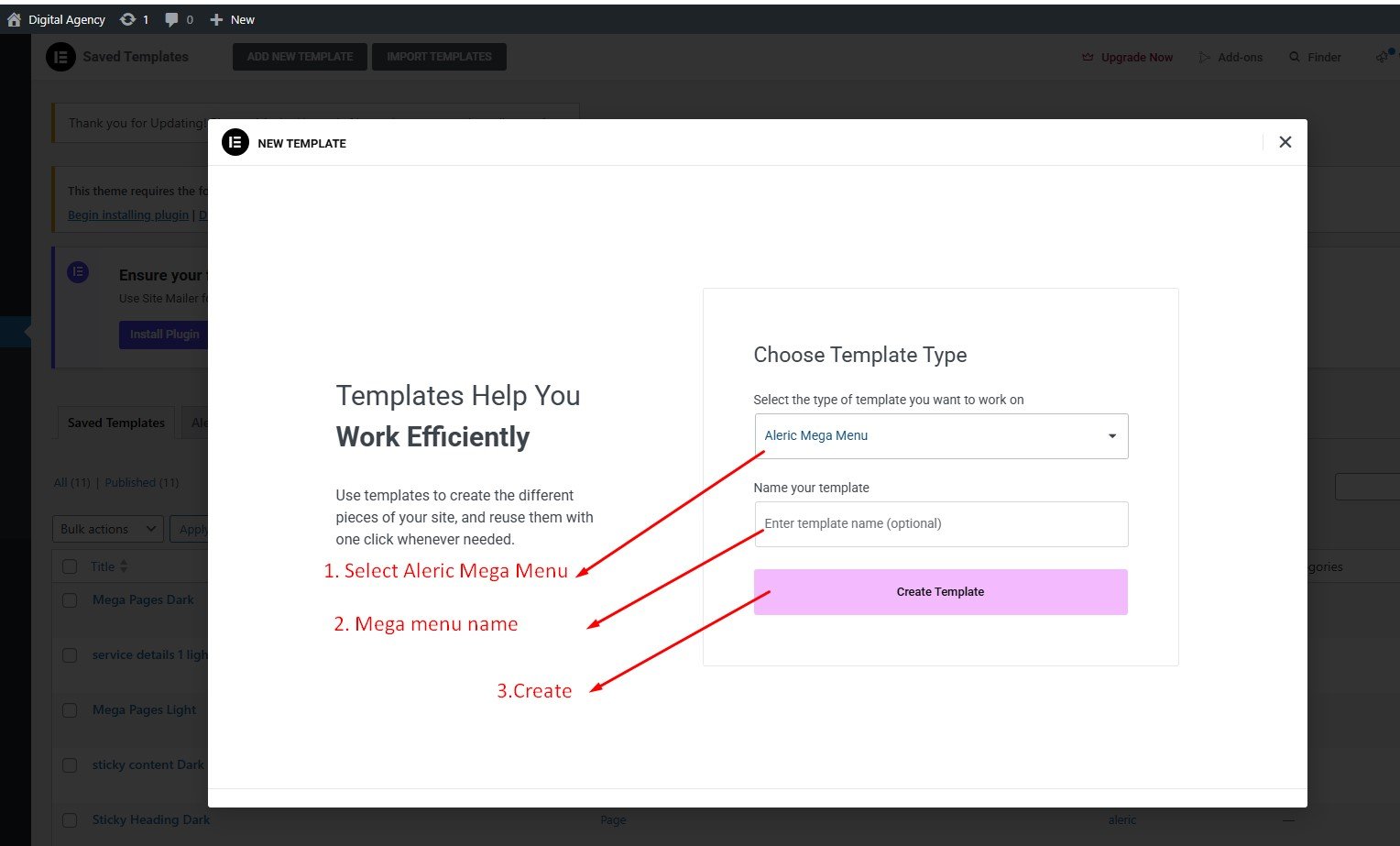
All Consulix mega menu templates are located at Dashboard → Theme Layout → Mega Menu.
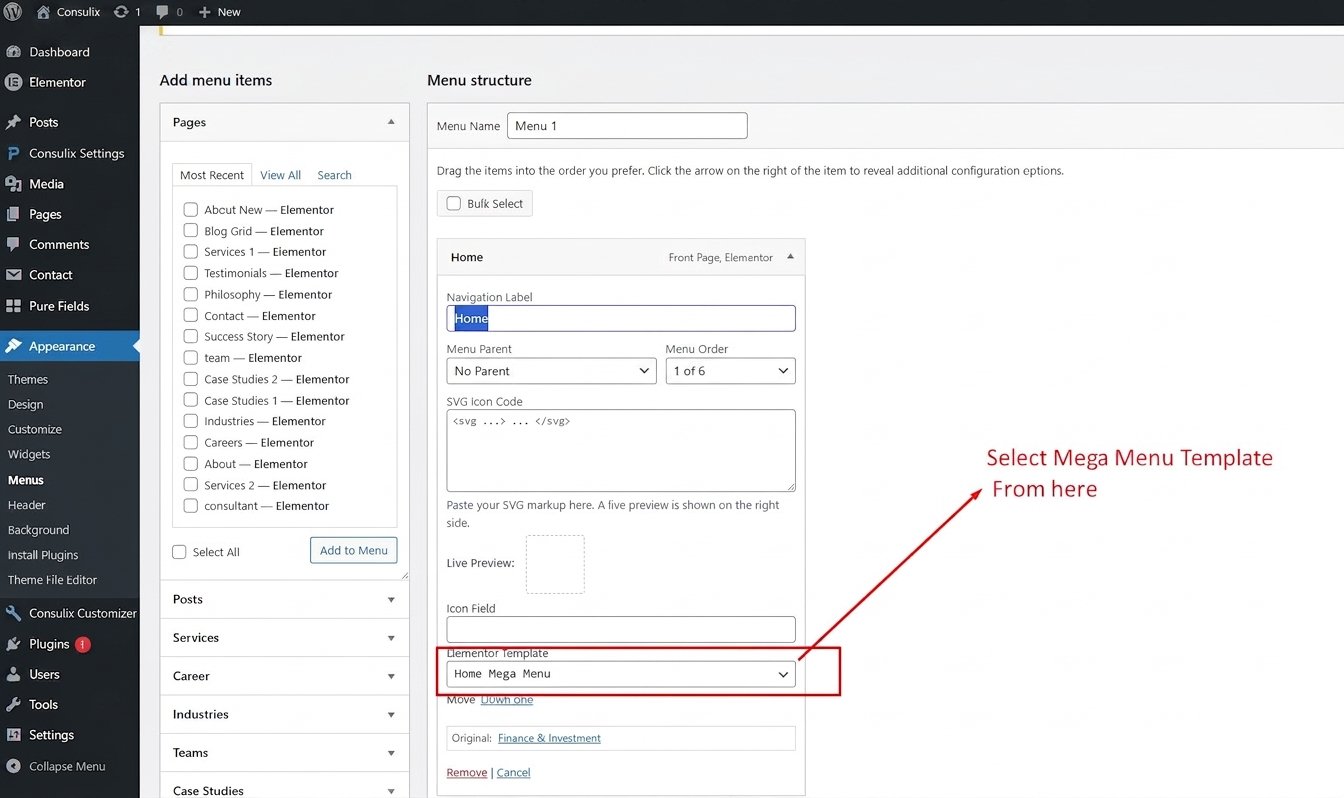
Select Mega Menu Template From Dashboard → Appearance → Menu.
Edit Mega Menu Template — Video Tutorial
Breadcrumb Settings
To change Breadcrumb settings, navigate to Dashboard → Consulix Options → Breadcrumb.
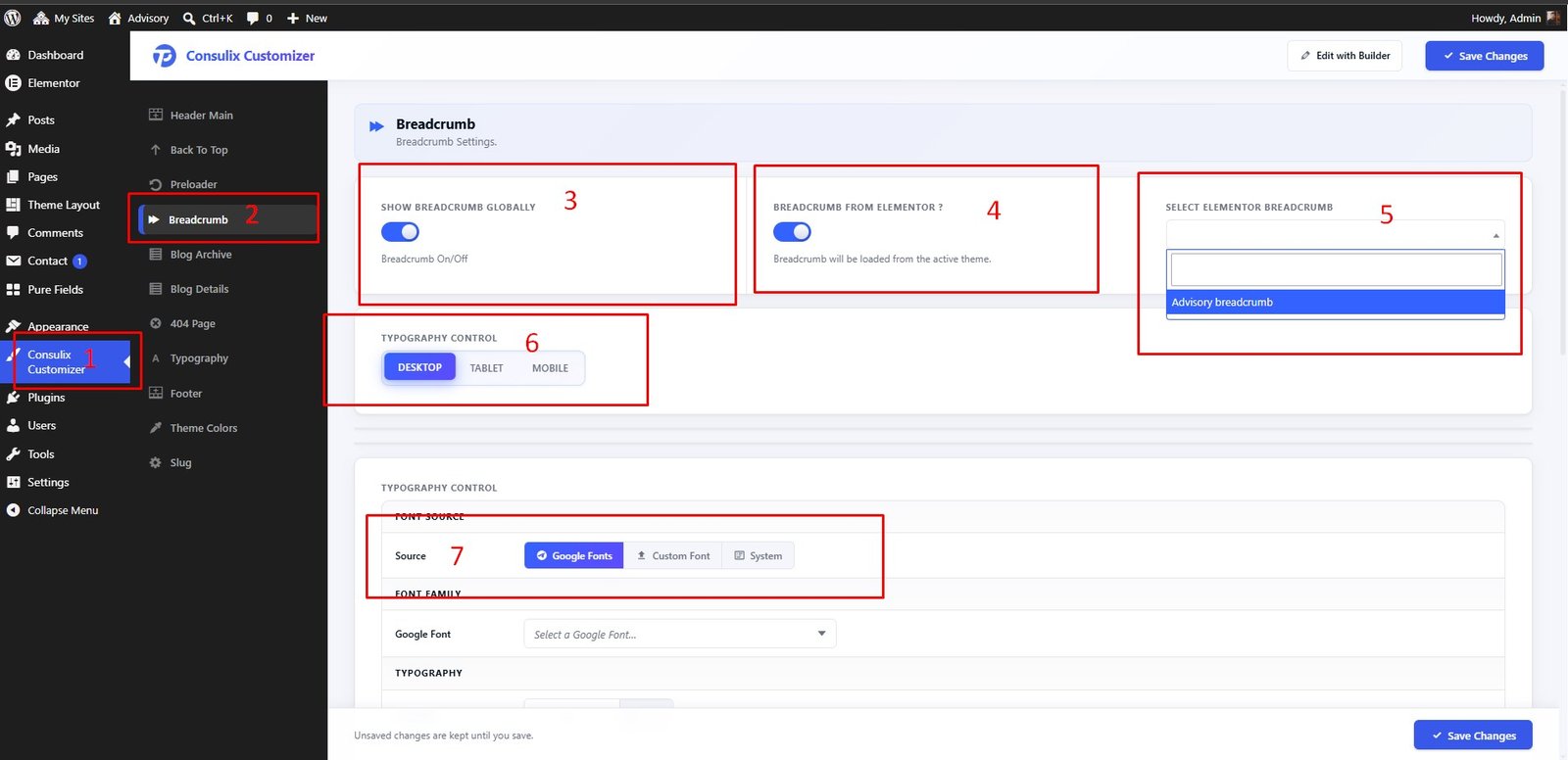
Features available in this section:
- ✅ 1. Click on Consulix Options
- ✅ 2. Select Breadcrumb
- ✅ 3. Global Breadcrumb Switcher
- ✅ 4. Breadcrumb Elementor Switcher
- ✅ 5. Breadcrumb Elementor Template
Offcanvas Settings
Create Offcanvas with Elementor
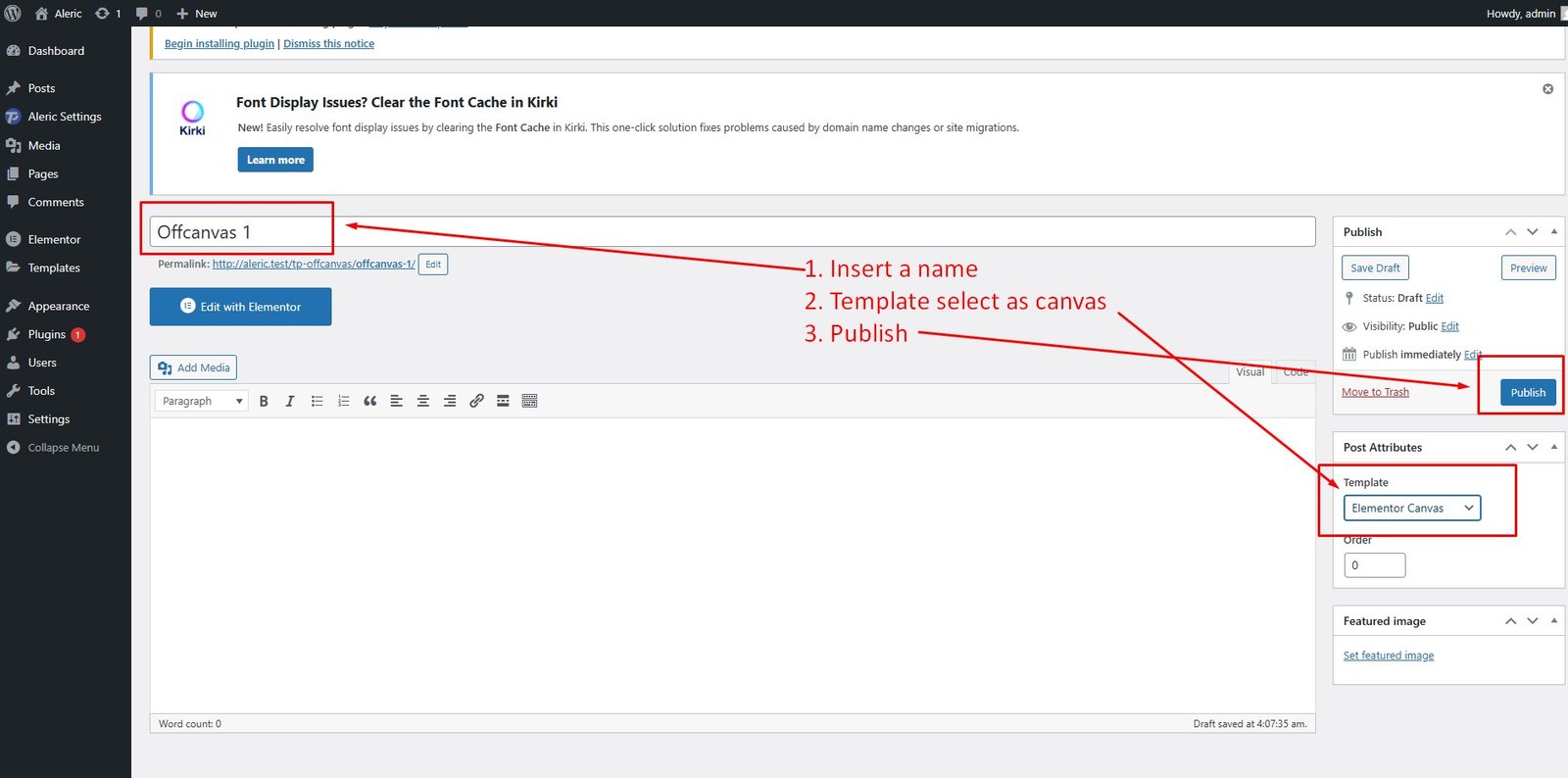
To create an Offcanvas, navigate to Dashboard → Theme Layout → Offcanvas → Add New Offcanvas.
Create Offcanvas Post
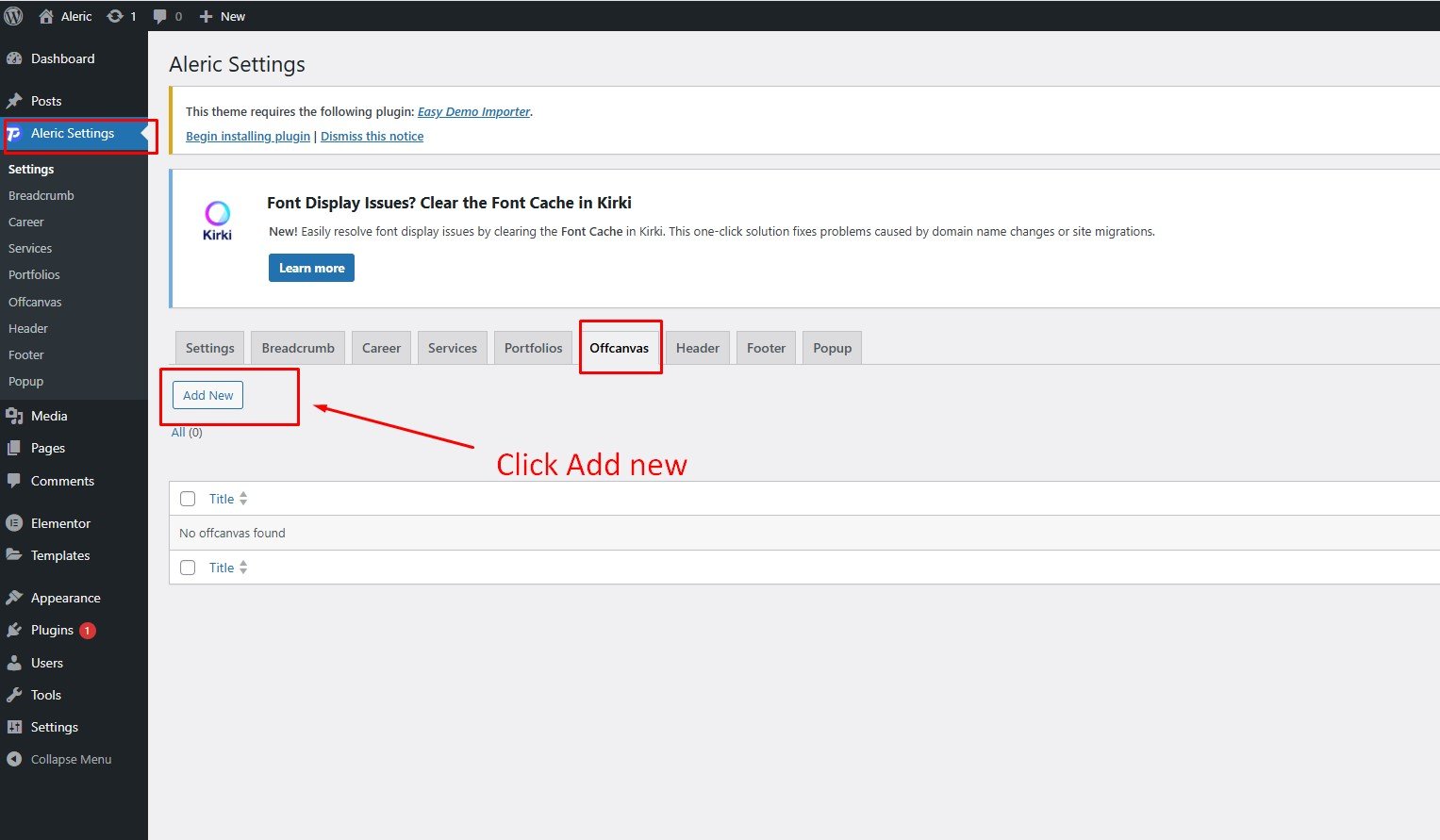
- Insert Offcanvas Title
- Select Page Template as "Elementor Canvas"
- Click "Publish"
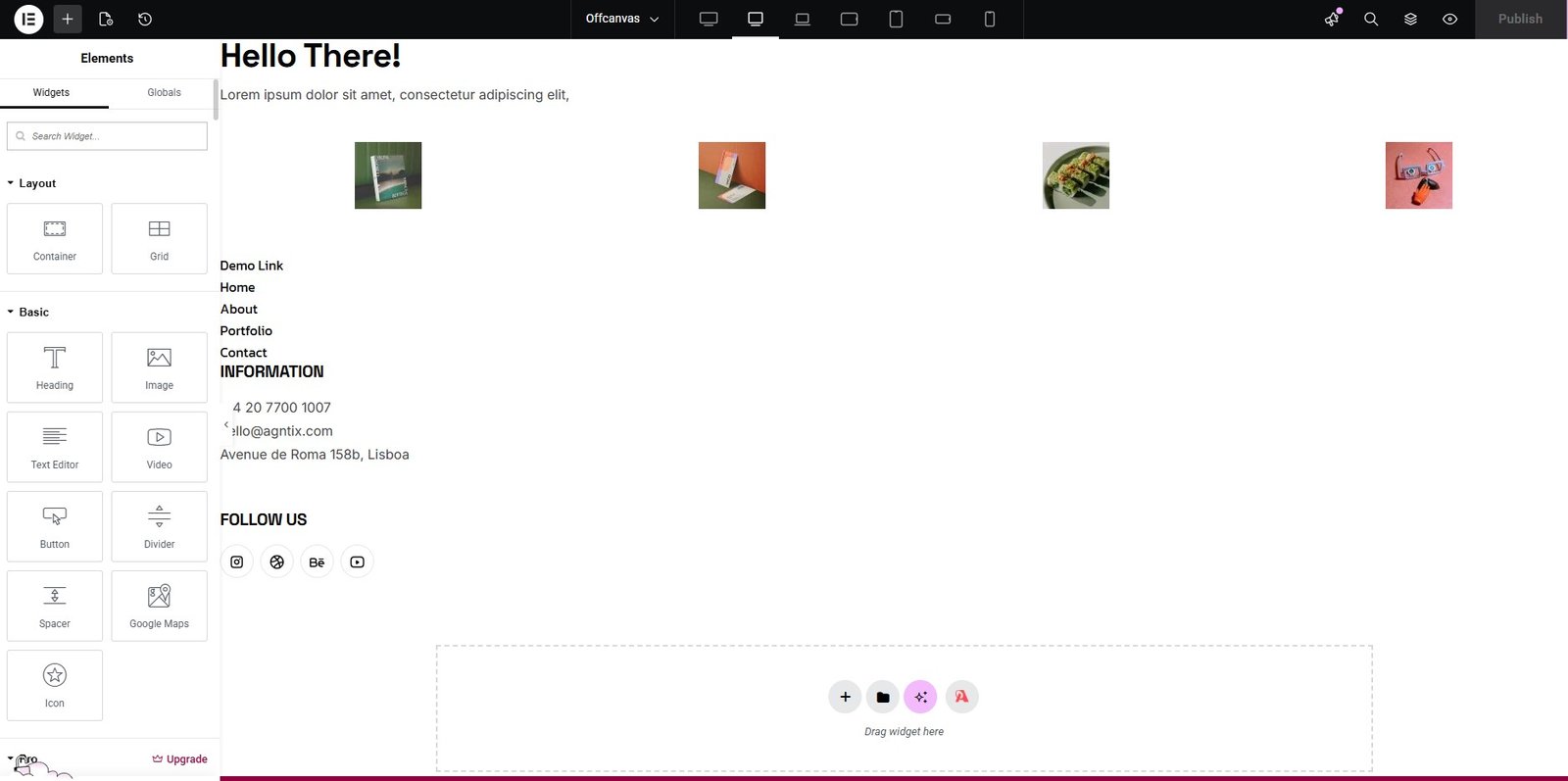
Build with Elementor
Create Offcanvas — Video Tutorial
Blog Archive
Blog Archive Settings
To change Blog Archive settings, navigate to Dashboard → Consulix Options → Blog Archive.
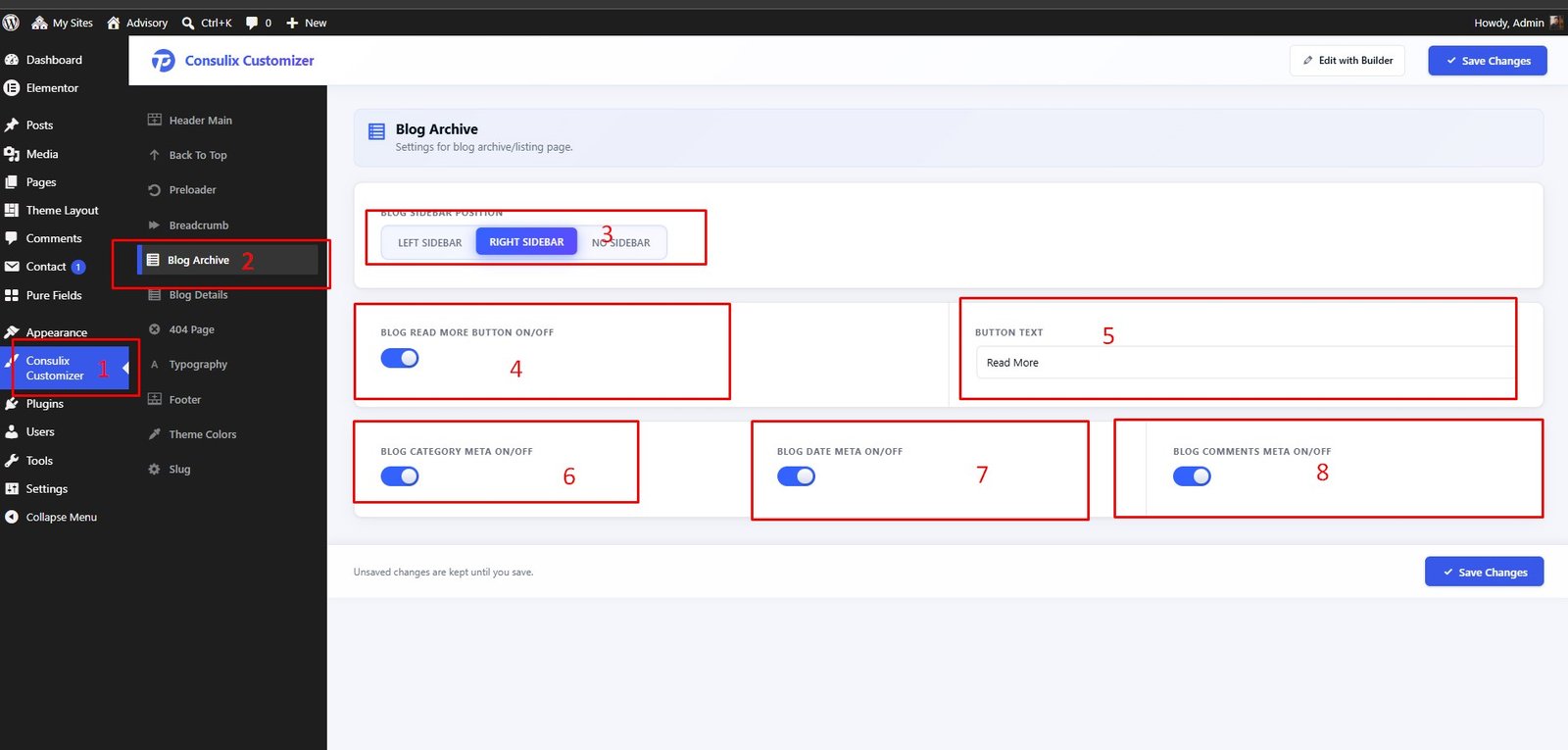
- ✅ 1. Click on Consulix Options
- ✅ 2. Select Blog Archive
- ✅ 3. Blog Sidebar Settings
- ✅ 4. Blog Read More On/Off
- ✅ 5. Blog Read More Text
- ✅ 6. Blog Category on/off
- ✅ 7. Blog Date on/off
- ✅ 8. Blog Comment on/off
Blog Details
Blog Details Settings
To change Blog Details settings, navigate to Dashboard → Consulix Options → Blog Details.
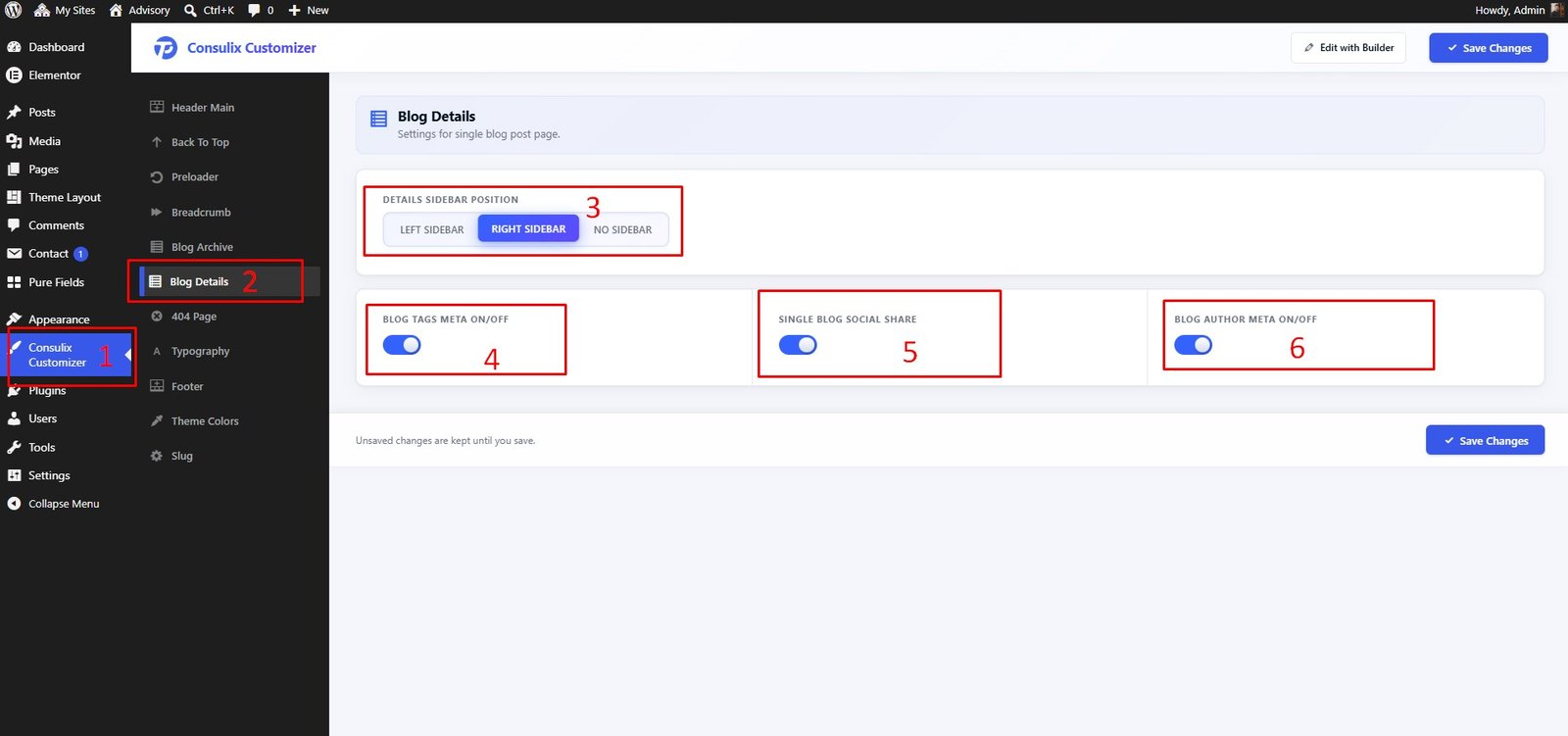
- ✅ 1. Click on Consulix Options
- ✅ 2. Select Blog Details
- ✅ 3. Blog Sidebar Settings
- ✅ 4. Blog Tag On/Off
- ✅ 5. Blog Social Share On/Off
- ✅ 6. Blog Author on/off