
Installation
Step-by-step guide to installing WordPress, uploading the Finzo theme, installing required plugins and importing the demo content.
WordPress Installation
Please follow the instructions in the videos below to see how you can install WordPress on your hosting:
| For localhost: | https://www.youtube.com/watch?v=snFzbPm_RUE |
| For cPanel: | https://www.youtube.com/watch?v=t-YBqV2ReR0 |
Installing the Theme
If you download the "All Files" archive from ThemeForest and try to upload it directly to
WordPress, you will receive the error: "Theme is missing the style.css
stylesheet." Please make sure you unzip the main archive first and upload only
finzo.zip to WordPress.
When you are ready to install the theme, you must first upload the theme files and then activate the theme. The theme files can be uploaded in two ways:
1. Using Theme Uploader
Follow the steps below:
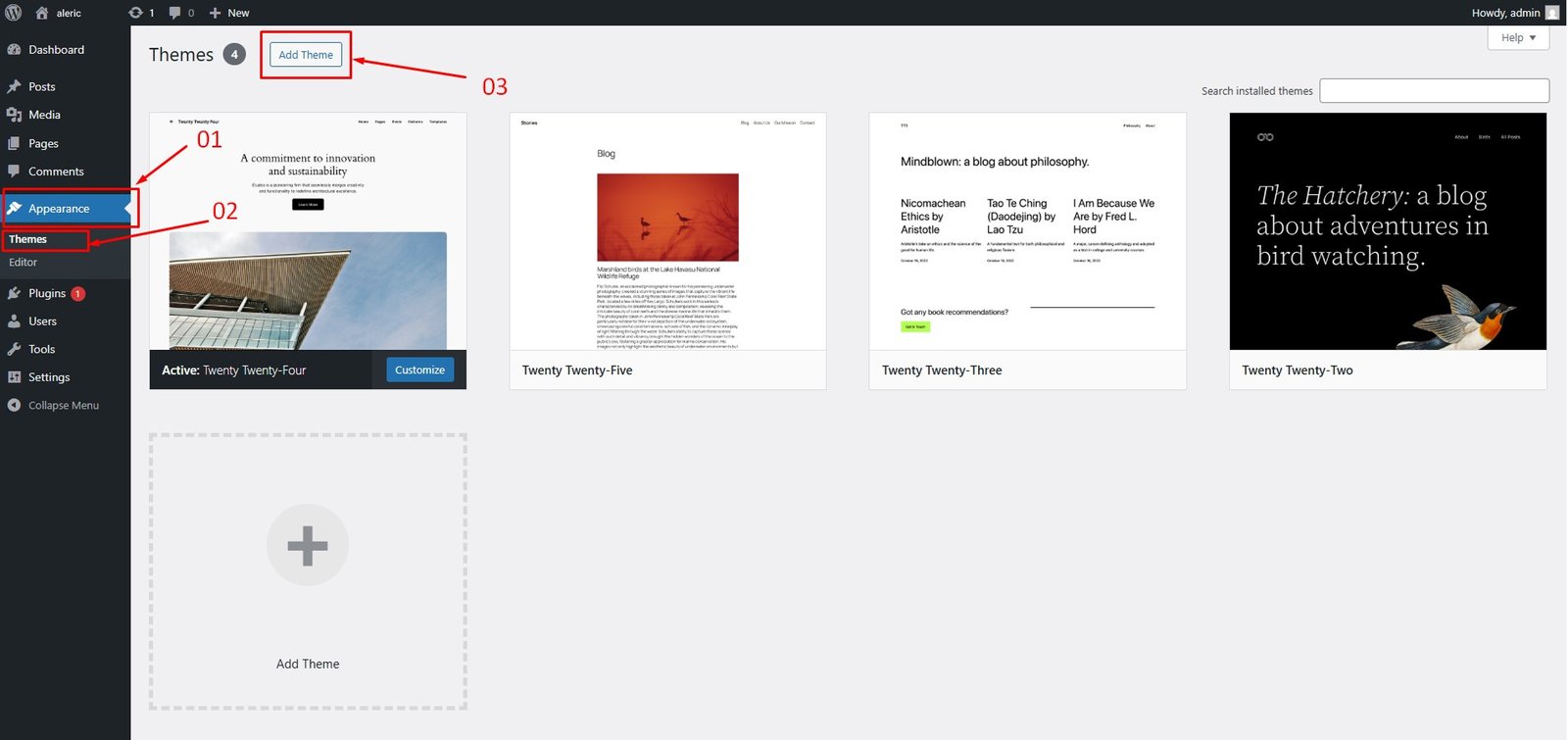
Go to Appearance → Themes → Add New → Upload Theme
From the WordPress dashboard navigate to Appearance → Themes → Add New → Upload Theme.
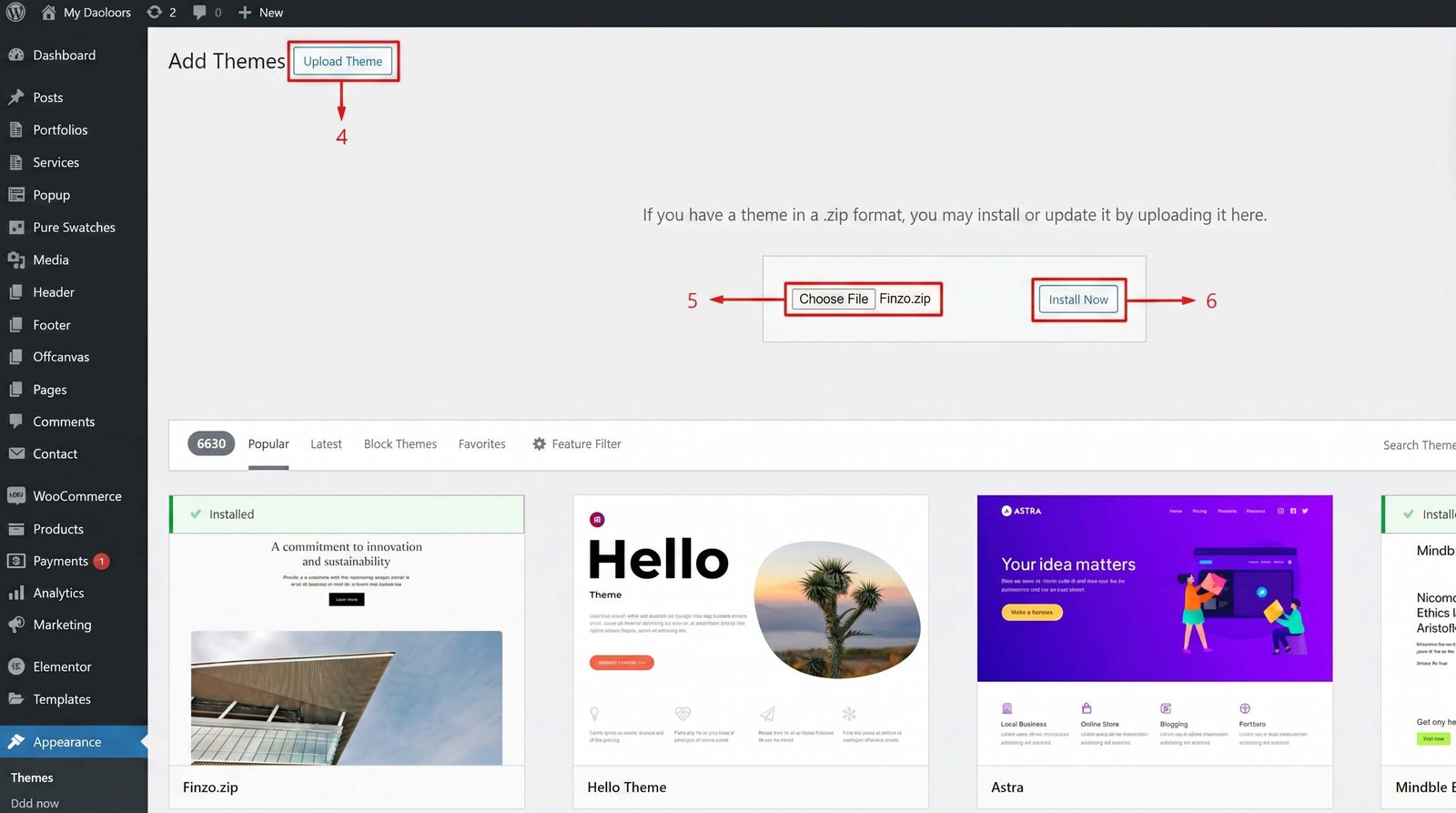
Choose File and Install
Click on "Choose File" and select finzo.zip, then click "Install Now".
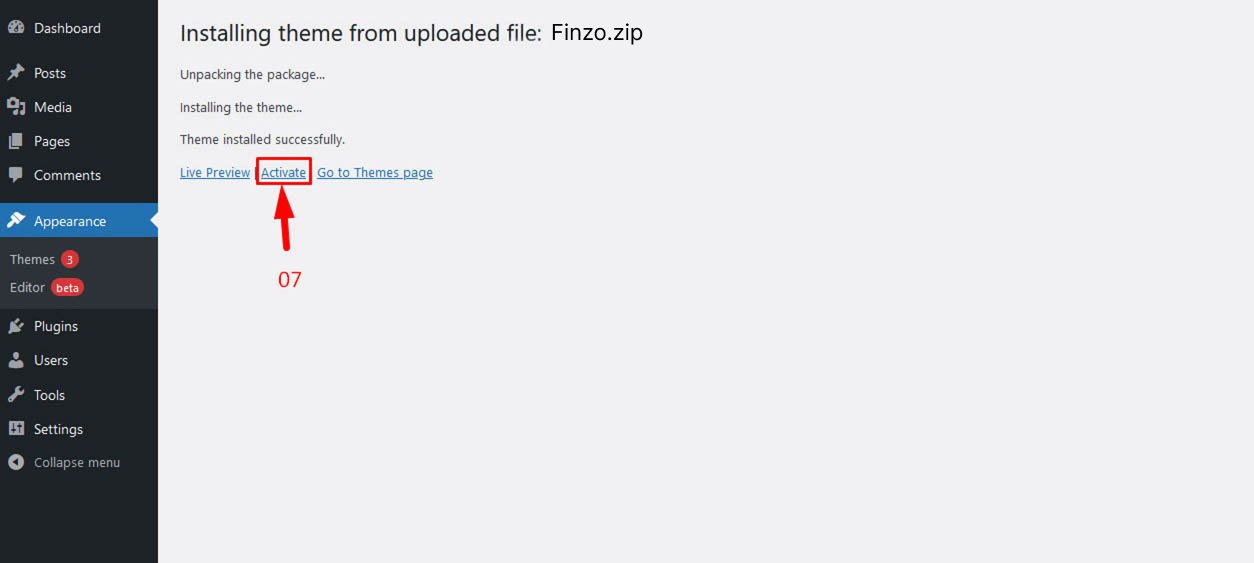
Activate the Theme
After the upload completes, click "Activate" to activate the Finzo theme.
All plugins must be installed and activated if you want your site to look exactly like the demo.
2. Using FTP Clients
Follow these steps to upload the theme using an FTP client (e.g. FileZilla):
- Use an FTP client such as FileZilla and connect to your WordPress installation directory.
- Navigate to the
/wp-content/themes/folder and upload the unzipped finzo theme folder there. - Log in to your WP Admin Dashboard and open the Appearance → Themes menu.
- You will now see the Finzo theme listed among the other themes. Click "Activate" and you're done!
3. Updating Theme
Occasionally we provide updates which include new features and bug fixes. Updating a WordPress theme is standard WordPress functionality.
Before updating, please make sure to keep a backup of your installed theme and plugins (e.g. FinzoCore) to be on the safe side. You can use this plugin: wp-theme-plugin-download
There are a few ways to update the WordPress theme:
- Install and activate the "Envato Market" plugin. Plugin zip: envato-market.zip
- From WordPress Admin Panel, navigate to the "Envato Market" menu.
- Insert your Envato Token Code. Generate it at: build.envato.com/create-token. Remember: login with the same Envato account you used to purchase the theme.
- After completing the above steps, navigate to Appearance → Themes. You'll see an "Update now" link beside Finzo. Click it to auto-update.
Quick video tutorial explaining this method:
- From WordPress Admin Panel, navigate to Appearance → Themes.
- Activate any other theme (e.g. Twenty Twenty-Four) than the current one.
- Delete the Finzo Theme.
- Navigate to Appearance → Themes → Add New → Upload. Browse and select the updated theme zip file. Hit "Install Now".
- Using your FTP client, navigate to the
/wp-content/themes/folder on your server and delete the finzo folder. - Upload the latest unzipped theme folder into
/wp-content/themes/.
After updating the theme, please also update all plugins that come with the theme.
4. Installing Required Plugins
Importing Demo Contents
We provide two methods for importing demo contents: One Click (Automatic) and Manual. You can follow either method.
| Method | When to Use |
|---|---|
| Finzo Importer Method (Recommended) : | This method will remove all your existing data, so use this method only in fresh website. This procedure will be faster because you just have to do one click and then everything will happen automatically. If you want an exact clone of demo website without doing any manual configuration after importing data then this method is appropiate for you. |
| Manually Import: | Automatic demo import method fails ( Only few of our customers like 5% have experienced this issue due to their hosting limits, in that case we also provide free demo importing service if you contact with us). You already have a working website with existing contents(eg. posts, pages etc). |
1. Finzo Importer Method
Want to build your site like the demo? You can do it with just one click!
When demo import is done, some existing settings will be replaced by demo contents (menu, Customizer). It is recommended to only do this on a fresh site.
Ensure Pure Demo Importer is Active
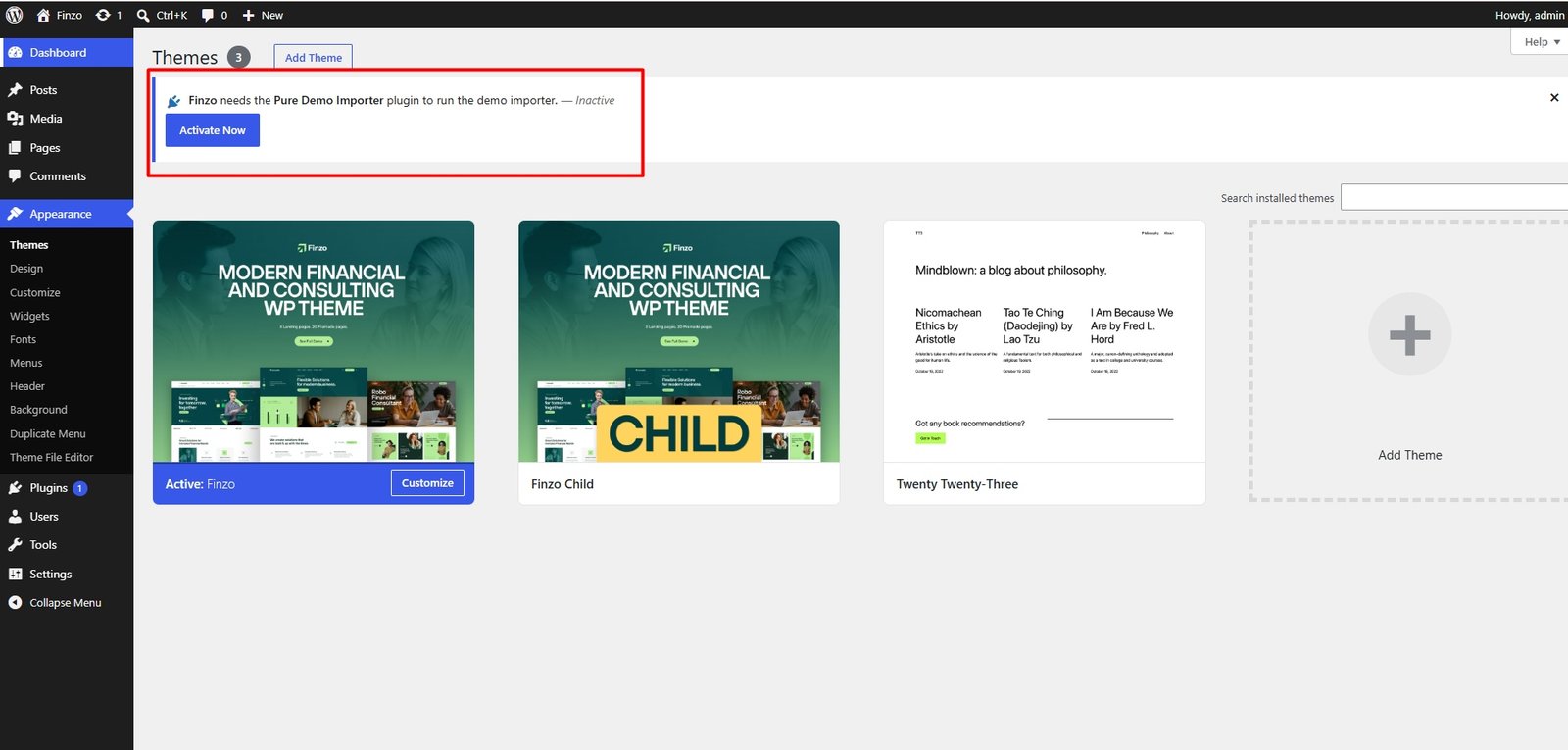
Go to Finzo Importer
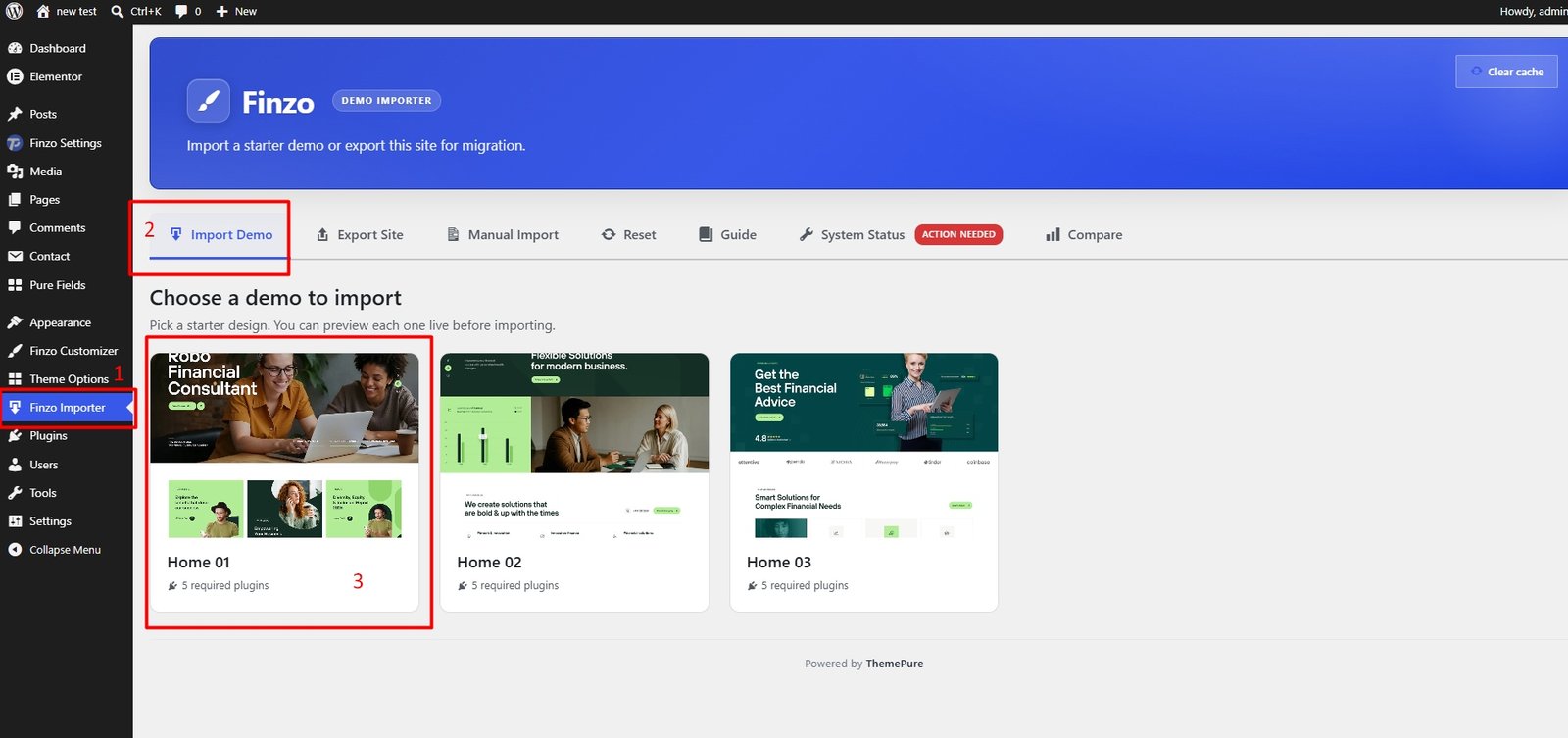
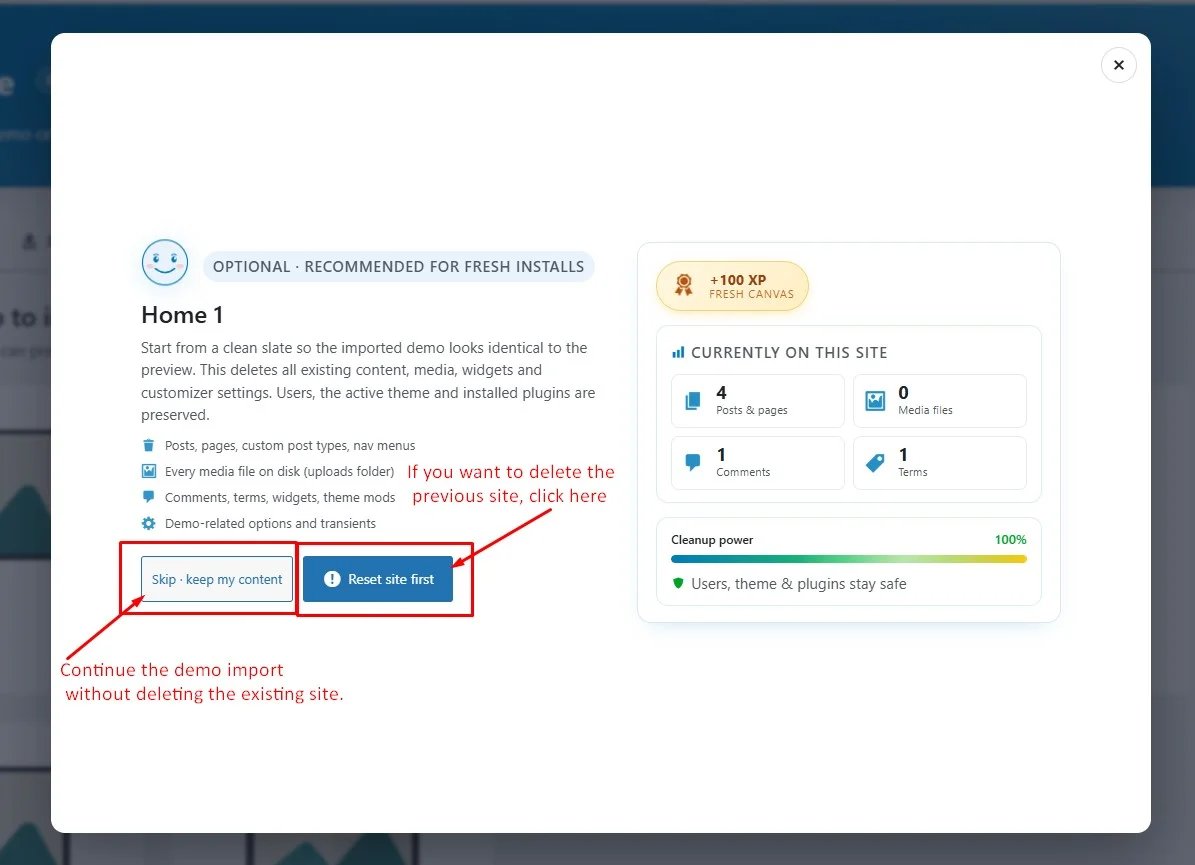
Reset Site First
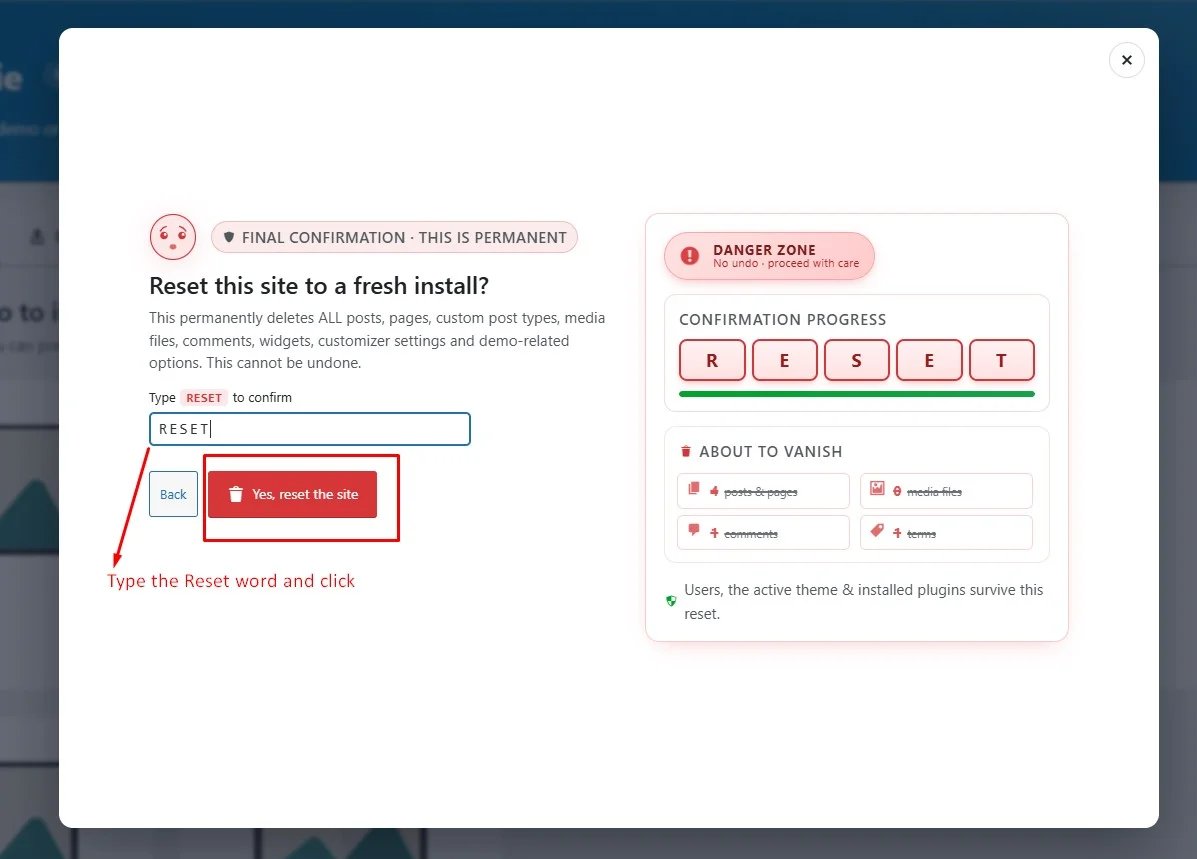
Confirm Reset
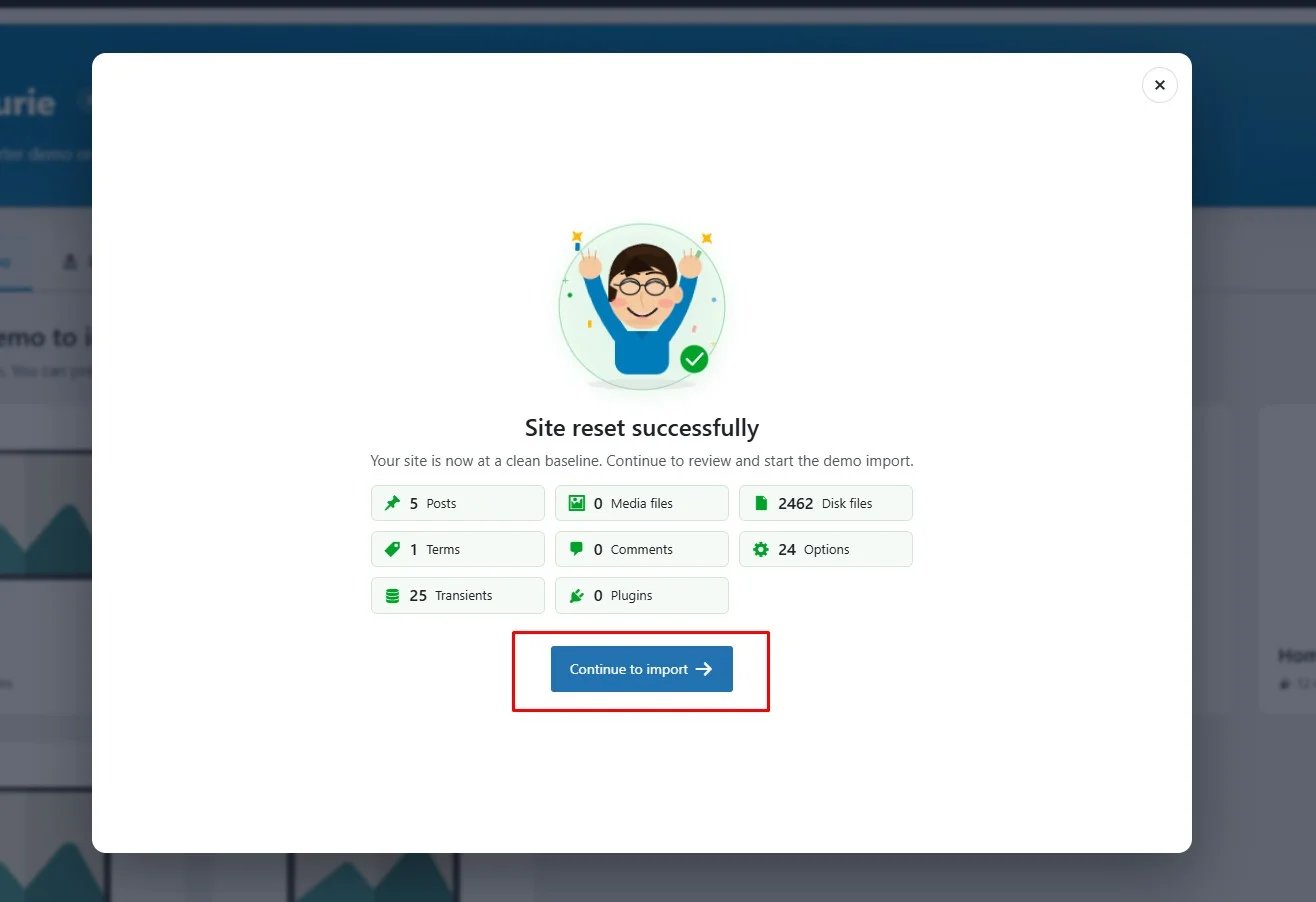
Reset Done
The Click Start Import
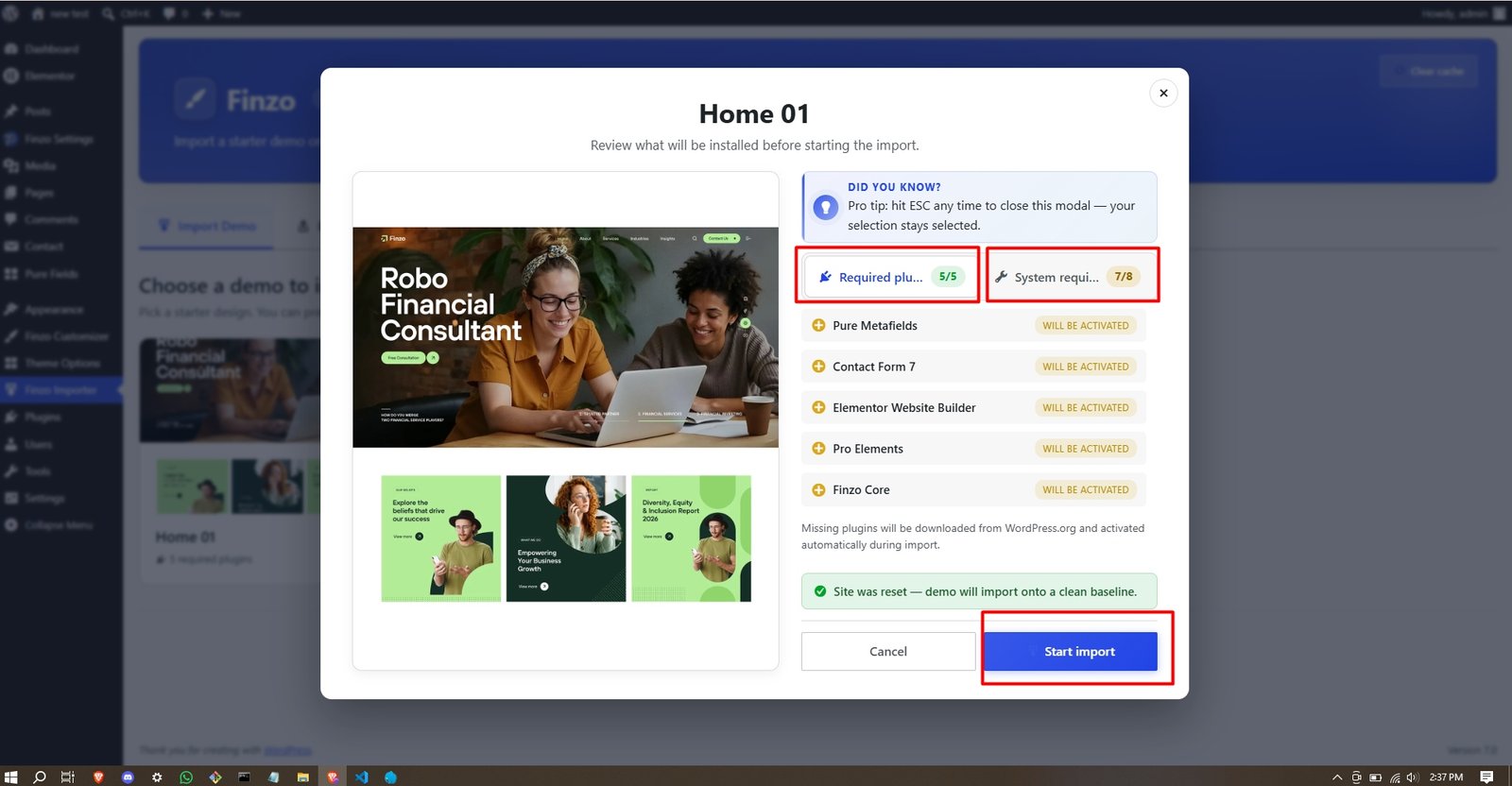
Import Complete
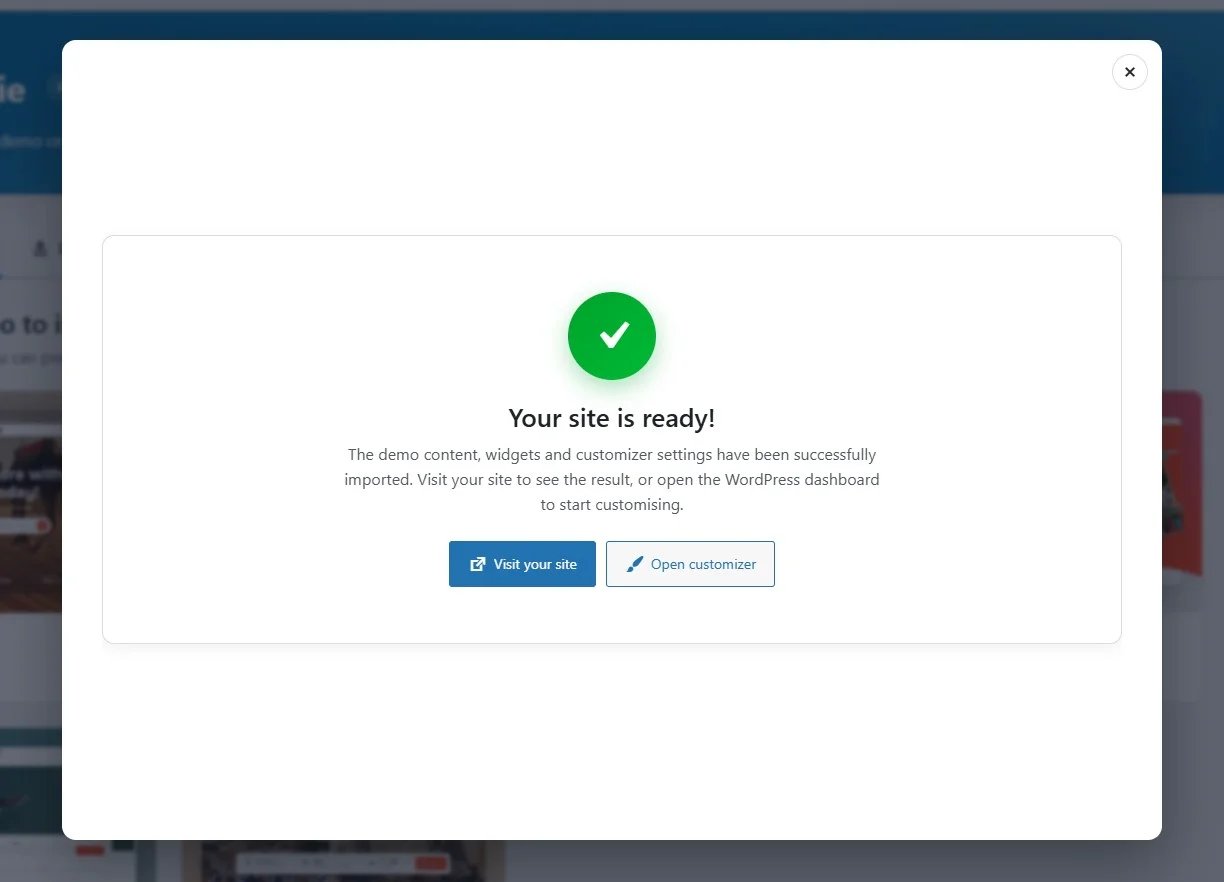
2. Manual Import
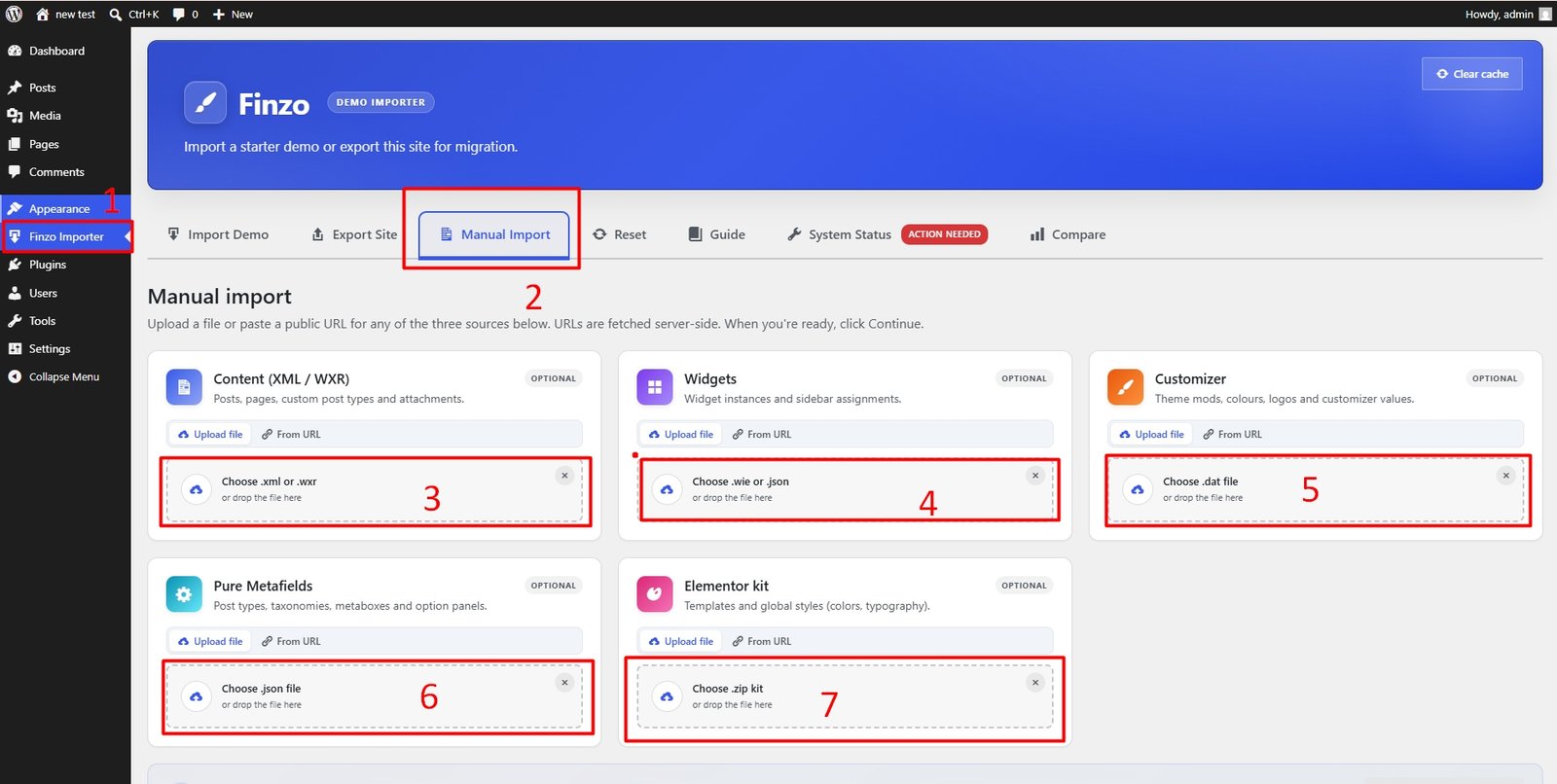
Please follow the instructions below to import demo data manually:
- ✅ Go to Finzo Importer from the WordPress sidebar menu.
- ✅ Click on the Manual Import tab.
- ✅ Choose .xml or .wxr file for Content (posts, pages, custom post types and attachments).
- ✅ Choose .wie or .json file for Widgets (widget instances and sidebar assignments).
- ✅ Choose .dat file for Customizer (theme mods, colours, logos and customizer values).
- ✅ Choose .json file for Pure Metafields (post types, taxonomies, metaboxes and option panels).
- ✅ Choose .zip kit for Elementor (templates and global styles — colors, typography).
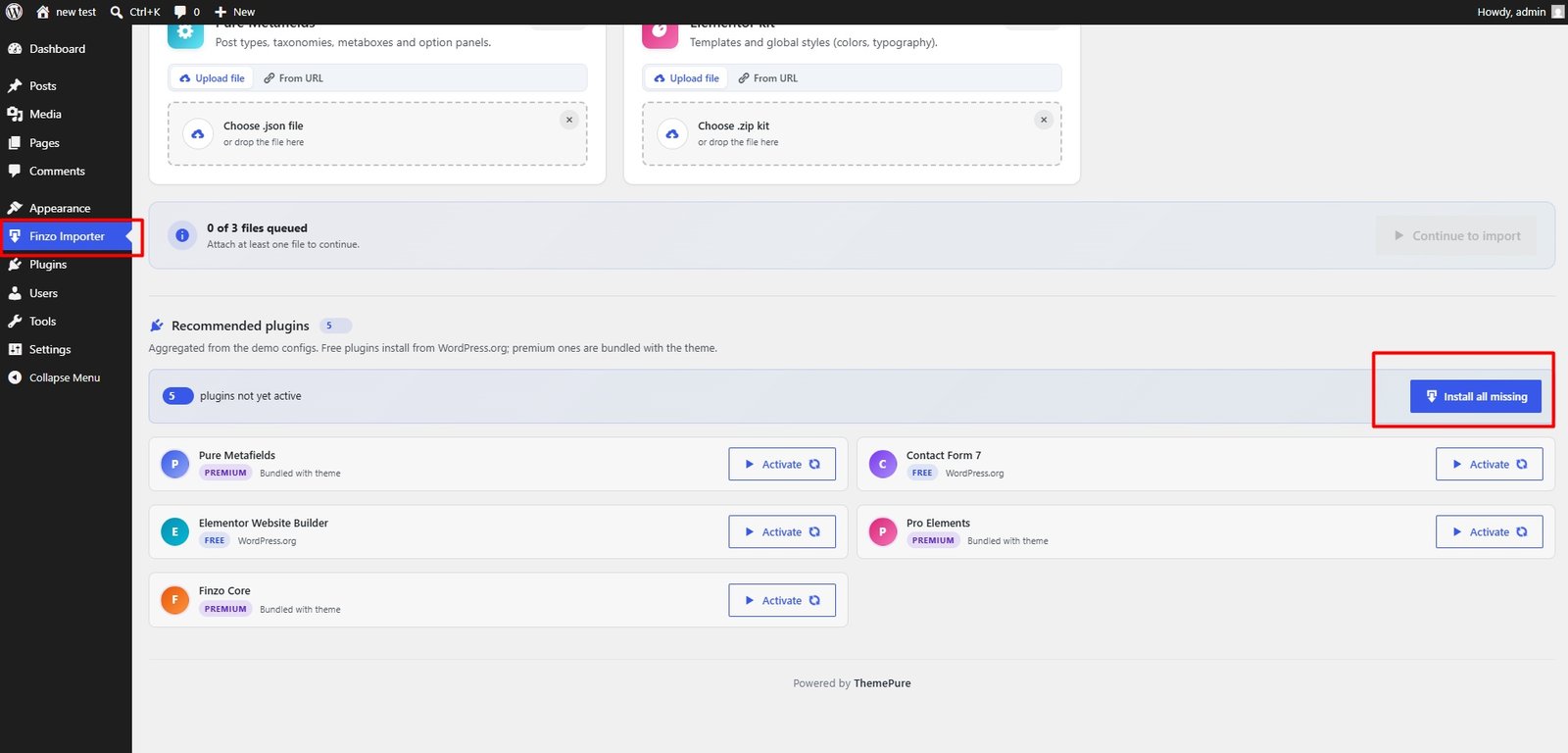
All the above files are included in the Theme package.
Where Is My Purchase Code?
To find your purchase code, when you buy a product from Envato you receive a purchase code. Visit the following link to learn how to find it: